The Contacts page is where your entire database lives. Every person who has ever interacted with your studio is stored here: active members, leads who enquired but never purchased, past members who cancelled, and even people who have unsubscribed from communications.
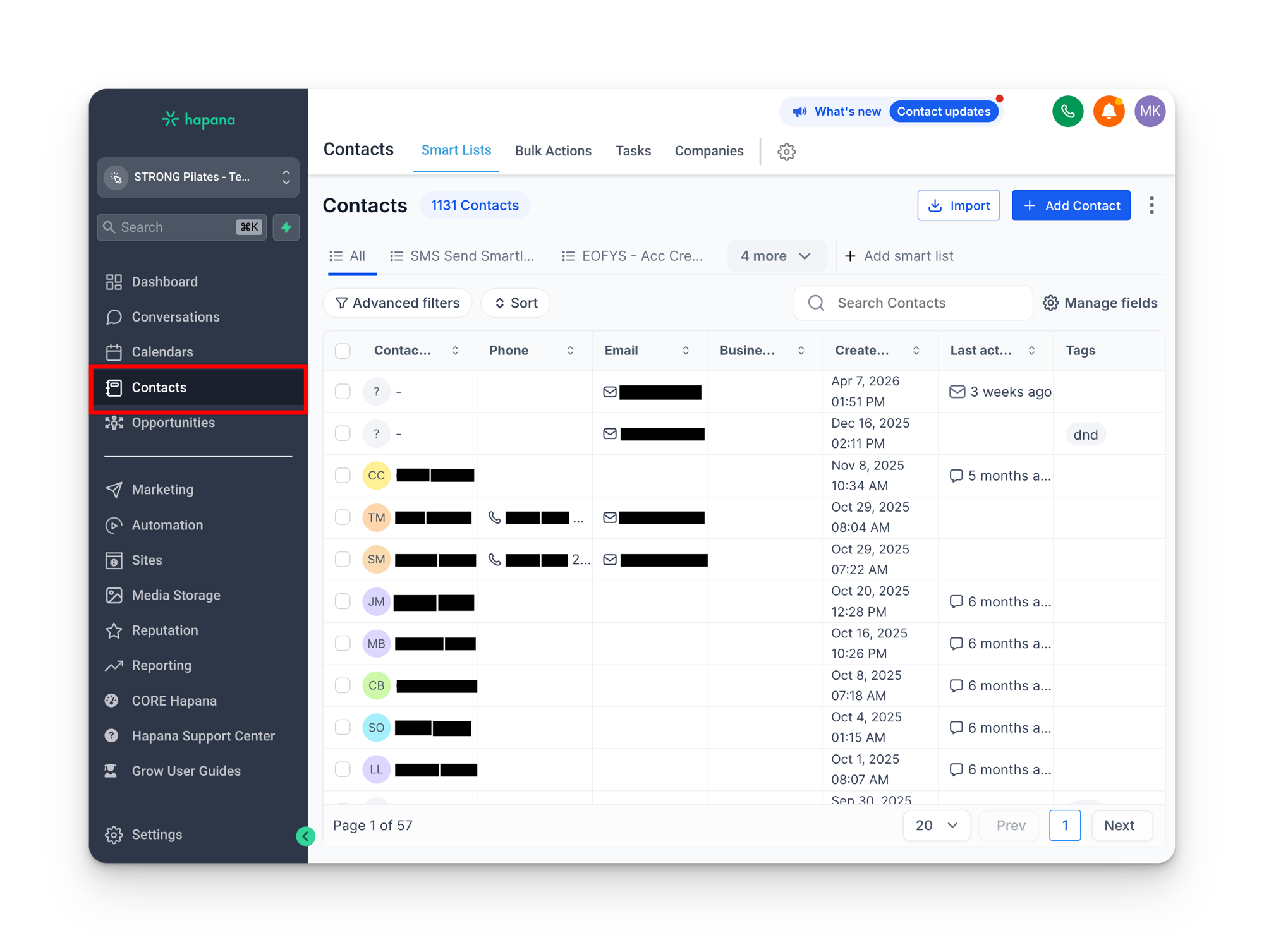
The “All” list
When you first land on the Contacts page, you are looking at the All smart list. This is every single contact in your database with no filters applied.
Do not use All for bulk messages
A common mistake is selecting “All” when sending a bulk SMS or email. This includes people who have unsubscribed or are marked as Do Not Disturb, which creates friction and can lead to compliance issues. Always select the appropriate smart list for the audience you want to reach. Smart lists are covered in detail in the Smart Lists section.
The contacts toolbox
At the top of the Contacts page you will see a row of action buttons. These are the bulk operations you can perform on your contacts. Most of them you will rarely use, but a few come up regularly.
Actions you will use
- Add to Workflow: select contacts and enroll them into an automation. This is how you manually add people to a workflow that would not otherwise be triggered automatically.
- Bulk SMS / Bulk Email: send a one-off message to a group of contacts. Always make sure you have the right smart list selected before sending.
Actions you probably will not use
- Add Contact: manually create a contact record. Most contacts are created automatically through the Core sync or form submissions.
- Add/Remove Tags: apply or remove tags in bulk. Tags are typically managed by workflows, not manually.
- Import / Export: upload contacts from a spreadsheet or download your database. Rarely needed since the Core sync handles contact creation.
- Delete: permanently remove contacts. Use with caution as this cannot be undone.
- Send Review Requests: trigger a review request to selected contacts.
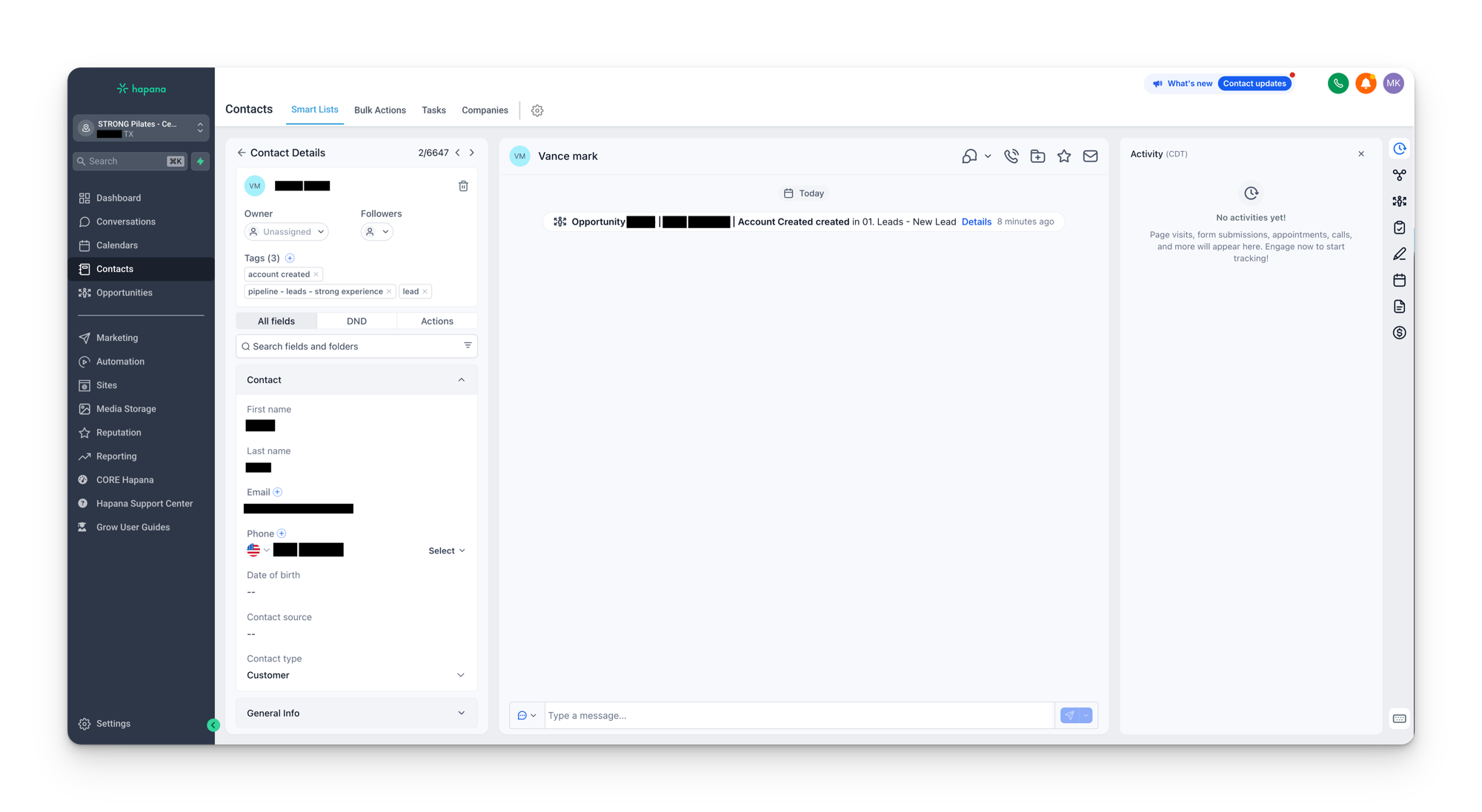
Customizing columns
The default columns on the contacts list show basic information like name, email, and phone. But you can add additional columns to surface data that matters more to your daily operations.
Useful columns to add:
- Active Package and Active Package Category: see at a glance what each contact is on
- Attendance Total: how many classes they have attended
- Days Absent: how long since their last visit
- Location Status: whether they are active, suspended, on an intro offer, or inactive
Save your columns per smart list
When you add columns to a smart list, make sure you save the smart list afterwards. This ensures those columns appear every time you visit that list, rather than reverting to the defaults.
Other tabs on the Contacts page
Bulk Actions
This tab shows a historical log of every bulk operation that has been performed on your contacts. If you sent a bulk SMS or added contacts to a workflow in bulk, the progress and results appear here. Useful for confirming that a bulk action completed successfully.
Tasks
Tasks in Grow live inside the Contacts page rather than having their own section in the main navigation menu. This is where you can create, edit, and manage tasks associated with specific contacts. Tasks are often created automatically by workflows as reminders to follow up with a lead or check in on a member.
Companies
The Companies tab is not used in the STRONG Pilates setup. You can ignore this section.
Manage Smart Lists
When you create a smart list, it is only visible to your account by default. If you want other users to see it (HQ, your performance manager, or another staff member), you need to go into Manage Smart Lists and share it with them. This is covered in detail in the Smart Lists section.
How contacts get created
Contacts enter your Grow database through three main paths:
- Core to Grow sync: when someone purchases a membership or package in Core, their contact record is automatically created (or updated) in Grow. This is the most common path for members.
- Form submissions: when a lead fills out a form on a landing page or through a Facebook lead ad, a contact record is created in Grow.
- Manual entry: you can manually create a contact using the Add Contact button, but this is rarely needed.
Duplicate contacts
If a lead fills out a form in Grow and later purchases in Core, the sync may create a second record if the email address does not match exactly. Email is the primary matching key between the two systems. When you spot duplicates, you cannot merge them yourself. Use the phone-number workaround in the Contact Duplicates guide, and email grow@strongpilates.co if the duplicate is causing problems.