Smart lists are saved filters on your contacts database. Instead of manually selecting people every time you want to see a specific group, you define the rules once and the list updates itself as contact data changes. When a new member joins, their record automatically appears in the smart lists that match their data. When someone cancels, they move out of the active members list and into the past members list without anyone touching anything.
This is what makes smart lists different from a static spreadsheet export. You never need to re-upload or refresh. The data is always current because smart lists read directly from the contact fields that the Core sync keeps up to date.
Why smart lists matter
Smart lists are the foundation for almost everything you do with contacts in Grow. When you send a bulk SMS, you select a smart list. When you want to see how many active members you have, you check a smart list. When you need to follow up with leads who enquired but never booked, you have a smart list for that.
Without properly configured smart lists, you are either guessing at your numbers or manually scrolling through your entire database trying to find the right people.
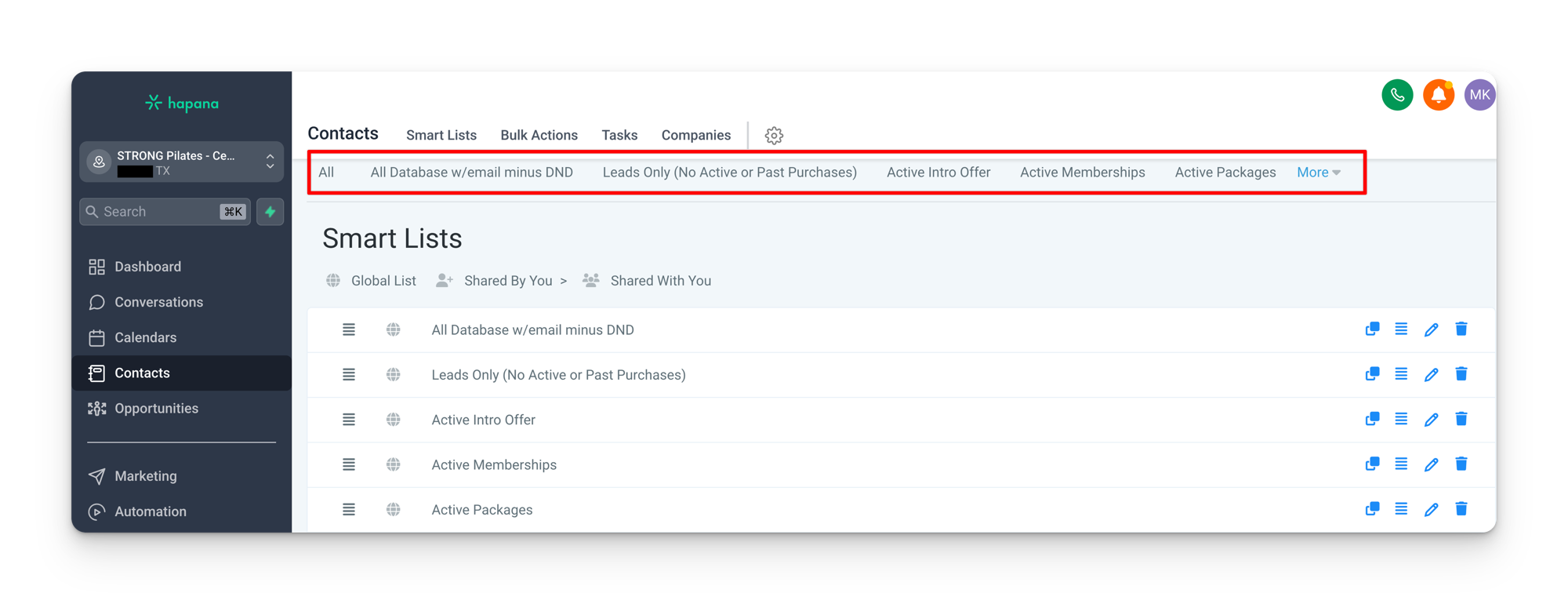
Smart lists every location should have
These are the six core smart lists that get created during the initial account setup. Each one is built using filters on the custom fields that the Core integration populates.
1. All Database w/email minus DND
Your primary contactable database. This list shows everyone who has an email address and has not been marked as Do Not Disturb. Use this list instead of “All” whenever you need to send a bulk message to your entire reachable audience.
| Filter | Operator | Value |
|---|---|---|
Email | Is not empty | |
DND | Is not | Enabled for Email |
Columns: Name, Created, Last Activity, Phone, Tags
2. Leads Only (No Active or Past Purchases)
People in your database who have never purchased anything. They may have filled out a form, enquired through a landing page, or been created by a Facebook lead ad. This is the list you work from when following up on unconverted leads.
| Filter | Operator | Value |
|---|---|---|
Active Package | Is empty | |
Past Active Packages | Is empty | |
DND | Is not | Enabled for Email |
Email | Is not empty |
Columns: Name, Active Package, Created, Last Activity, Past Active Packages, Phone, Tags
Why both Active Package and Past Active Packages?
Checking that both fields are empty ensures this list only shows true leads. If someone had a package in the past but does not have one now, they belong in the Past Purchases list, not here.
3. Past Purchases
People who previously had a package or membership but no longer have anything active. These are former members, expired intro offer holders, and lapsed package users. This list is useful for win-back campaigns and re-engagement outreach.
| Filter | Operator | Value |
|---|---|---|
Active Package | Is empty | |
Past Active Packages | Is not empty | |
DND | Is not | Enabled for Email |
Email | Is not empty |
Columns: Name, Active Package, Created, Email, Last Activity, Past Active Packages, Phone, Tags
4. Active Intro Offer
Members currently on an intro offer. These are people in the earliest stage of their membership journey, and they need the most attention. This list helps you track who is on trial so you can ensure they have a positive experience and convert to a full membership.
| Filter | Operator | Value |
|---|---|---|
Active Package Category | Contains exactly | Intro |
Columns: Name, Active Package, Active Package Category, Created, Last Activity, Phone, Tags
5. Active Memberships
Everyone on a recurring membership. This is your core member base. Use this list to see your total membership count, identify members who may need attention, and send communications specifically to paying members.
| Filter | Operator | Value |
|---|---|---|
Active Package Category | Contains | Memberships |
Columns: Name, Active Package, Active Package Category, Created, Email, Last Activity, Phone, Tags
6. Active Packages
Everyone on a non-membership package, such as class packs, punch cards, or other session-based products. These contacts are active but not on a recurring plan. Useful for understanding how many people are using pay-per-session options versus memberships.
| Filter | Operator | Value |
|---|---|---|
Active Package Category | Contains | Packages |
Columns: Name, Active Package, Active Package Category, Created, Email, Last Activity, Phone, Tags
Save your columns after adding them
When you add columns to a smart list, make sure you save the smart list afterwards. If you skip this step, the columns reset to defaults the next time you visit that list.
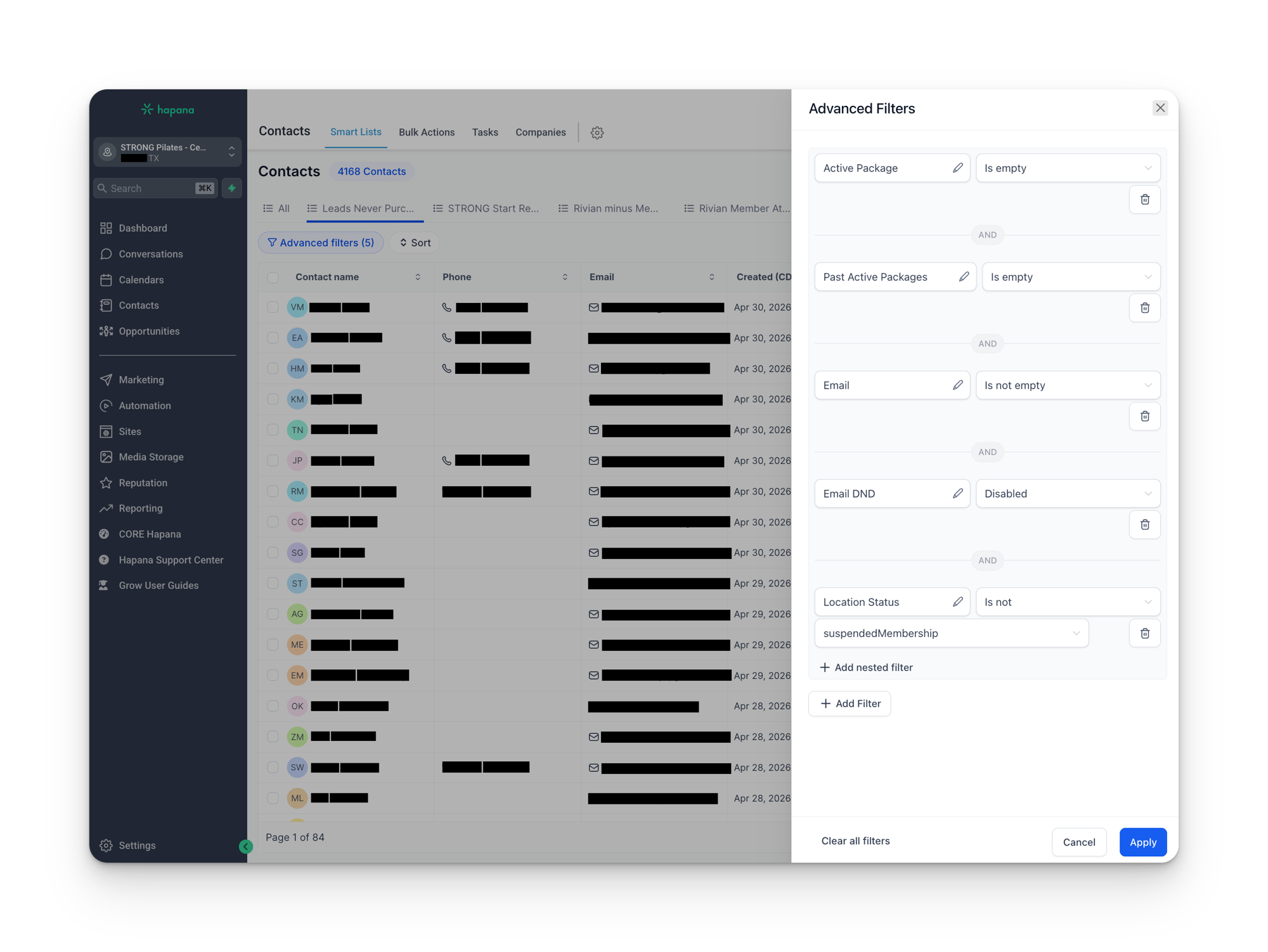
How filters work
Every smart list is built from one or more filters. Each filter targets a specific contact field and checks it against a condition. You can combine multiple filters to narrow down the list.
- AND filters: all conditions must be true. For example, the Leads Only list requires that Active Package is empty AND Past Active Packages is empty AND the contact has an email AND they are not DND. All four conditions must match for a contact to appear.
- OR filters: any condition can be true. For example, if you wanted a list of everyone on either an intro offer or a membership, you could create an OR group where Active Package Category contains “Intro” OR Active Package Category contains “Memberships”.
The fields available for filtering are the same custom fields populated by the Core sync. If you are unsure what a field contains or what values it uses, refer to the Core to Grow Integration section for the full list.
Key fields used in smart list filters
These are the contact fields that appear most often across the core smart lists:
| Field | What it contains | Example values |
|---|---|---|
Active Package | The name of the contact’s current package or membership | Unlimited Monthly, STRONG Intro Offer 7 Classes |
Active Package Category | The category grouping of their active package | Intro, Memberships, Packages |
Past Active Packages | Packages the contact previously had but are no longer active | 10 Class Pack, Unlimited Monthly |
Email | The contact’s email address | sarah@example.com |
DND | Do Not Disturb status | Enabled for Email, Enabled for SMS |
Building your own smart lists
Beyond the six core lists, you can create additional smart lists for specific needs. Some useful examples:
- At Risk (14+ Days Absent): Active Package Category contains “Memberships” AND Days Absent is greater than 14. Shows members who have not visited in over two weeks.
- New Members (Month to Date): filter on join date within the current month. Shows everyone who joined this month.
- Suspended Members: Location Status equals “suspendedMembership”. Shows members who have paused.
The pattern is the same every time: pick the contact field, set the condition, and save the list. If you need to combine multiple conditions, add AND or OR groups as needed.
Sharing smart lists
When you create a smart list, it is only visible to your account by default. Other users logged into the same location will not see it unless you explicitly share it.
To share a smart list:
- Go to the Contacts page
- Click Manage Smart Lists in the toolbox
- Find the smart list you want to share
- Select the users you want to share it with (this includes HQ users, performance managers, and any other staff member with access to your location)
- Save
Share your lists with HQ
If HQ or your performance manager needs visibility into your studio numbers, they need to be added as a shared user on your smart lists. Without this, they cannot see the lists you have created, even though they have access to your location.
Common mistakes
- Sending bulk messages from “All”. The All list includes unsubscribed contacts and people marked Do Not Disturb. Always select a filtered smart list that excludes these people. The “All Database w/email minus DND” list exists specifically for this reason.
- Not saving columns. If you add columns to a smart list but do not save, they will reset next time you visit. Always save the list after customizing columns.
- Creating lists only you can see. If you set up useful smart lists but never share them, your team and HQ are operating blind. Share lists with anyone who needs them.
- Confusing “Contains” with “Contains exactly”. The Active Intro Offer list uses “Contains exactly” to match the word “Intro” precisely. The Active Memberships and Active Packages lists use “Contains” which is a broader match. Using the wrong operator can include or exclude contacts you did not intend.
- Filtering on the wrong field. Make sure you are using the correct custom field for your filter. For example,
Active Packagegives you the specific package name, whileActive Package Categorygives you the grouping (Intro, Memberships, Packages). Check the Integration page if you are unsure which field to use.