These two terms come up constantly in Grow, and almost everyone confuses them at first. They both use the same {{curly bracket}} syntax when inserted into messages, which makes them look identical. But they pull data from completely different places and serve completely different purposes.
Understanding the difference is essential before you touch contacts, workflows, or any kind of communication template.
Custom Fields
A custom field is a piece of data stored on a specific contact. Every contact in Grow has their own set of field values, and those values are unique to that person. Think of custom fields as columns in a spreadsheet where each row is a different contact.
Some fields are standard and built into every Grow account (first name, last name, email, phone number). Others are custom fields that were created either manually or by the Core to Grow integration.
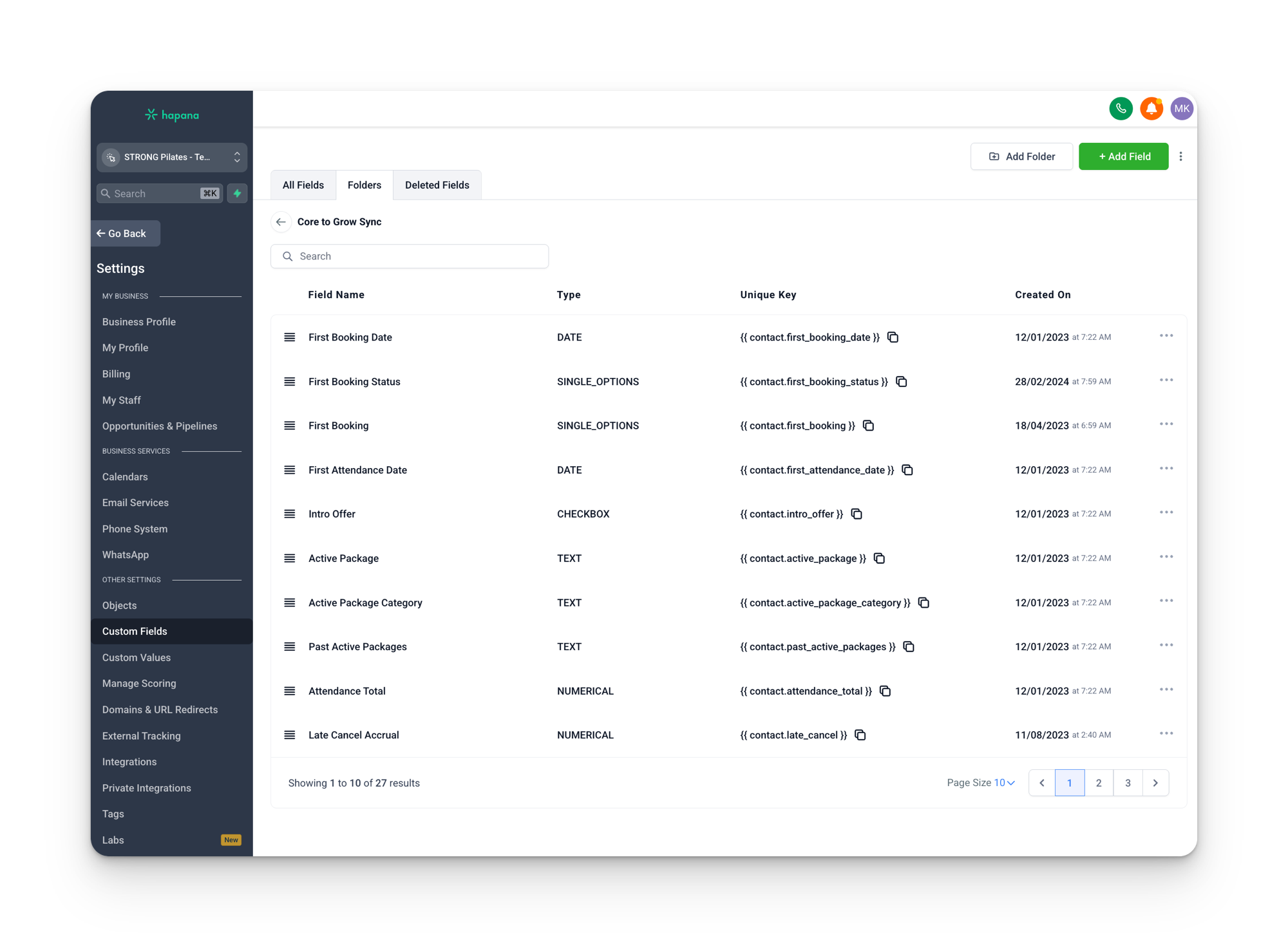
Examples of custom fields
| Field | What it stores | Example value |
|---|---|---|
contact.first_name | The contact’s first name | Sarah |
contact.active_package | Their current membership or package | Unlimited Monthly |
contact.days_absent | Days since their last class | 12 |
contact.intro_offer | Whether they have claimed an intro offer | claimed |
contact.location_status | Their current status at the location | activePackage |
contact.first_booking_status | Status of their very first booking | attended |
The key thing: these values are different for every contact. Sarah’s days_absent might be 12, while James’s might be 0 because he has a class booked tomorrow.
Where custom fields come from
Most of the custom fields you see in Grow were created automatically by the Core to Grow integration. When the sync runs, it pushes data from Core (membership status, attendance, packages) into custom fields on each contact record in Grow. The full list of synced fields is documented in the Core to Grow Integration section.
You can also create your own custom fields in Settings > Custom Fields for any additional data you want to track on contacts that the sync does not cover.
Where custom fields are used
- Workflow conditions: “If
contact.intro_offerequalsclaimed, then send this message” - Smart List filters: “Show me all contacts where
contact.location_statusequalsactivePackage” - Pipeline automations: “Move to the next stage when
contact.first_booking_statuschanges toattended” - Personalized messages: “Hey
{{contact.first_name}}, you have not visited in{{contact.days_absent}}days”
Custom Values
A custom value is a piece of data stored at the location level. It is not tied to any individual contact. It is the same for every single person at that location. Think of custom values as global variables for the studio account.
Custom values are set once in Settings > Custom Values and then referenced throughout SMS templates, email templates, landing pages, and workflows.
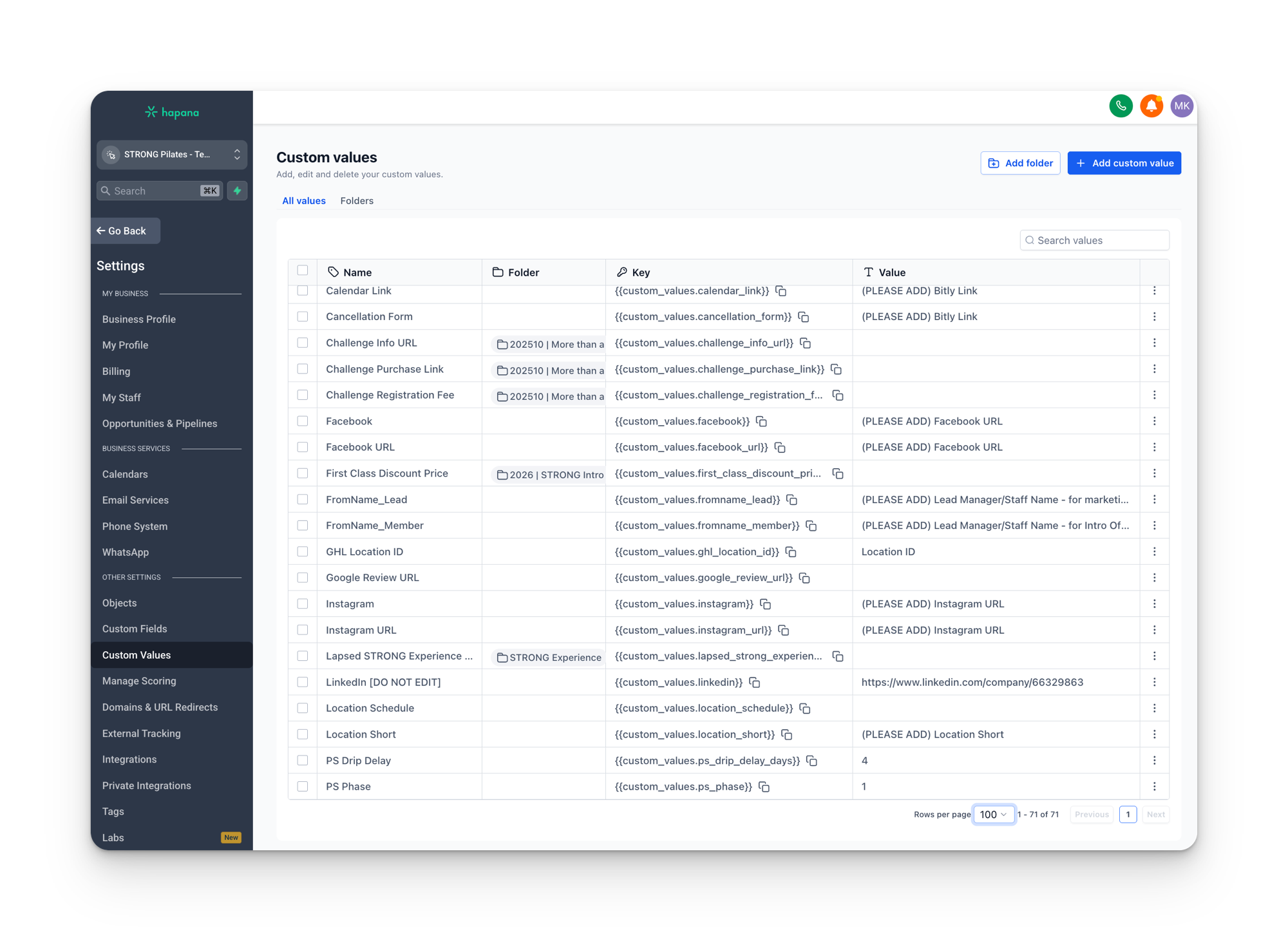
Examples of custom values
| Value | What it stores | Example |
|---|---|---|
| Website URL | The studio’s website address | https://strongpilates.com/melbourne-cbd |
| App URL | Link to download the booking app | https://app.strongpilates.com |
| Studio Phone | The studio’s main phone number | +61 3 9000 1234 |
| Studio Address | Physical address for directions | 123 Collins Street, Melbourne VIC 3000 |
| Intro Offer Price | Current intro offer pricing | $49 for 2 weeks |
The key thing: these values are the same for every contact at that location. When an SMS says “Book at {{custom_values.website_url}}”, every person who receives that message gets the same URL.
Why custom values matter
Because STRONG Pilates uses a template account to push workflows and communications out to 142+ locations, the actual studio details cannot be hardcoded into message templates. Instead, templates use custom value placeholders. When a message goes out, Grow replaces the placeholder with whatever value that specific location has set.
This means one SMS template can say:
Hey {{contact.first_name}}, thanks for signing up! Download the app at {{custom_values.app_url}} and book your first class at {{custom_values.website_url}}.
And it works for every location, as long as each location has filled in their custom values.
Empty custom values break messages
If a custom value is left blank, the placeholder gets replaced with nothing. Your message will read “Download the app at” with an empty space where the link should be. This is one of the most common issues with communications and it is entirely preventable. Check your custom values in Settings > Custom Values and make sure every field relevant to your location is filled in.
Side by side
| Custom Fields | Custom Values | |
|---|---|---|
| Stored on | Individual contact records | The location account |
| Unique per | Contact | Location |
| Set by | Core sync, workflows, or manual entry | Studio manager in Settings |
| Example | {{contact.days_absent}} | {{custom_values.website_url}} |
| Changes between contacts? | Yes, every contact has their own value | No, same for everyone at that location |
| Found in | Settings > Custom Fields | Settings > Custom Values |
How they look in a message
Here is what a typical SMS template looks like with both custom fields and custom values in use:
Hey {{contact.first_name}}, we noticed it has been {{contact.days_absent}} days since your last class at STRONG Pilates. We miss you! Book your next session at {{custom_values.website_url}} or call us at {{custom_values.studio_phone}}.
When this sends to a contact named Sarah who has not visited in 14 days at the Melbourne CBD location, it becomes:
Hey Sarah, we noticed it has been 14 days since your last class at STRONG Pilates. We miss you! Book your next session at https://strongpilates.com/melbourne-cbd or call us at +61 3 9000 1234.
The {{contact.}} placeholders pulled from Sarah’s individual record. The {{custom_values.}} placeholders pulled from the Melbourne CBD location settings. Same template, personalized output.
Quick rule of thumb
If the data changes from person to person, it is a custom field. If the data is the same for everyone at a location, it is a custom value.
What we set up vs what you need to fill in
When a new location is set up or a campaign snapshot is deployed, Kaizen fills in the majority of custom values for you. However, there are two that only the studio can fill in because they require information we do not have.
What Kaizen handles
These are configured by Kaizen during setup or deployment. You do not need to touch them.
| Custom Value | What it does |
|---|---|
| Website | Your studio’s website URL, used in SMS and email links |
| Location Short | Short name for your studio (e.g. “Melbourne CBD”), used across 36+ SMS templates |
| Purchase Link | Link for members to purchase packages |
| Calendar Link | Booking calendar link for consultations |
| Cancellation Form | Link to the cancellation request form |
| Google Review URL | Direct link for members to leave a Google review |
| Facebook / Instagram URLs | Social media profile links |
| Twilio Number | The phone number used for SMS communications |
| Intro Offer Price / Purchase Links | Pricing and deep links for the current intro offer |
| Grow Location ID | Internal system identifier |
What the studio needs to fill in
These two are on you
Kaizen cannot fill these in because they depend on who is managing leads and member communications at your studio. Only you know the right name to put here.
| Custom Value | What it does | Where to find it |
|---|---|---|
| FromName_Lead | The name that appears in SMS messages sent to new leads | Settings > Custom Values |
| FromName_Member | The name that appears in SMS messages sent to current members | Settings > Custom Values |
Why FromName matters
These two values appear in some of the most important SMS messages your studio sends. FromName_Lead is used in 11 templates including the first message a lead receives after enquiring, call booking confirmations, and no show follow ups. FromName_Member is used in 4 templates including the message a new member receives right after completing their first class.
If these are left at the default placeholder, here is what your members actually receive after their very first visit:
Hi Sarah, (PLEASE ADD) Lead Manager/Staff Name here from STRONG. Well done on completing your first STRONG Pilates class today. How did you go?
That is the actual message that goes out if the value is never updated. Compare that to what it should look like:
Hi Sarah, Jess here from STRONG. Well done on completing your first STRONG Pilates class today. How did you go?
The difference is significant. The first version immediately tells the member that the message is automated and no one is actually paying attention. The second feels personal and opens the door for a real conversation.
What to put in these fields
Use the first name of the person at your studio who manages leads and member communications. If that is one person, use the same name for both. If your studio has a dedicated sales lead and a separate member experience manager, use each name in the appropriate field.
Common mistakes
- Editing synced custom fields manually. Fields populated by the Core integration (like
contact.active_packageorcontact.location_status) will be overwritten on the next sync cycle. If you need to correct something, fix it in Core and let the sync update Grow. - Leaving custom values empty after a snapshot. When a new campaign or workflow gets deployed to your location, it may reference custom values that you have not filled in yet. Always check Settings > Custom Values after receiving a snapshot.
- Confusing the two in workflow conditions. A workflow condition that checks “if website URL is not empty” needs to reference the right source. Checking a custom value when you meant a custom field (or the other way around) will produce unexpected results.