Actions are the steps a workflow performs after a trigger fires. They execute in order from top to bottom. A workflow can have dozens of actions chained together: send an SMS, wait three days, check a condition, send an email, add a tag, move a pipeline stage. Each step runs automatically, one after the other, for every contact that enters the workflow.
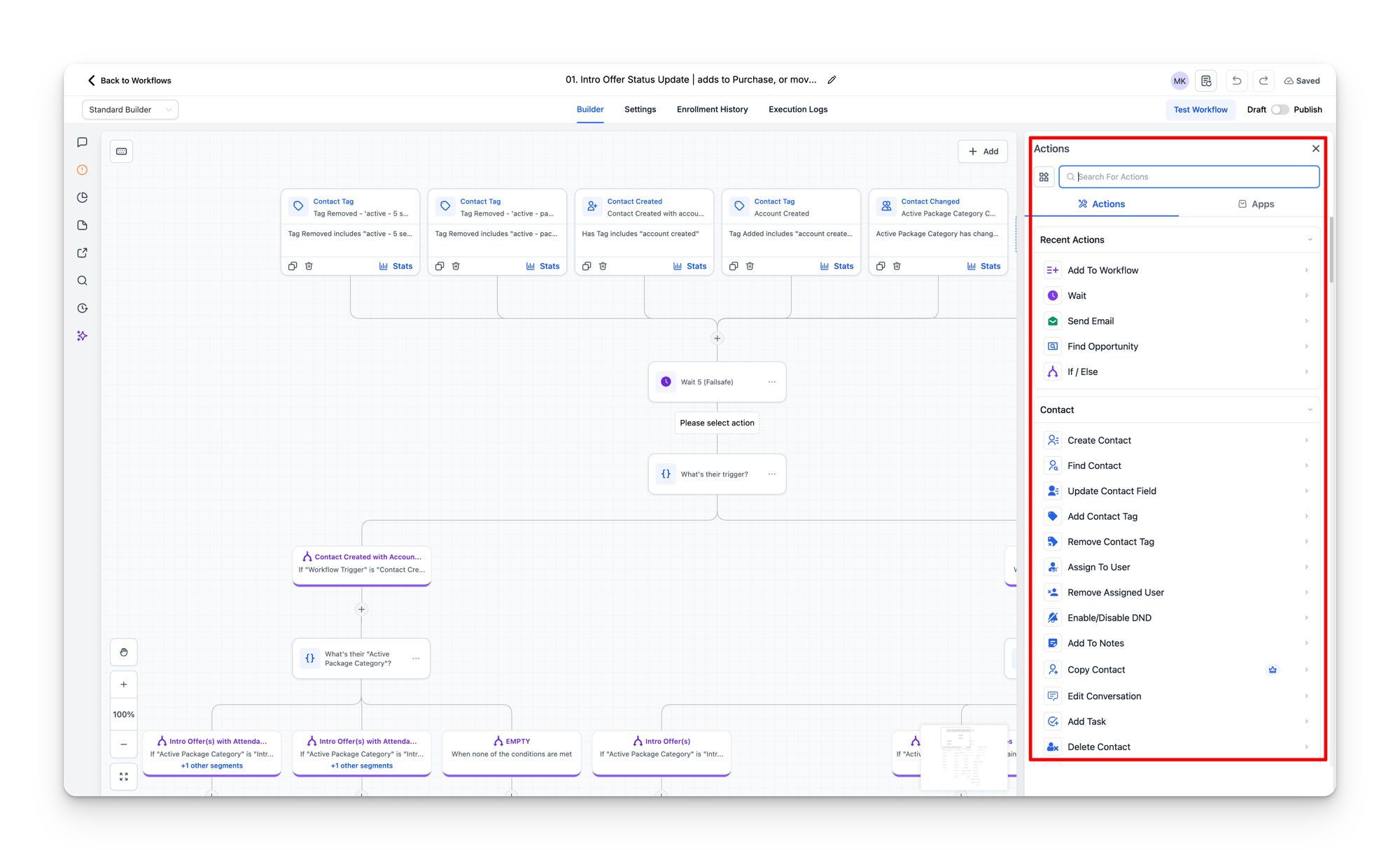
Action types used in STRONG workflows
The Actions panel organizes actions into categories. Here are the ones you will see inside STRONG workflows, grouped by what they do.
Communication actions
These send messages to the contact.
| Action | What it does |
|---|---|
| Send SMS | Sends an SMS to the contact. The message content comes from a snippet or is written directly in the action. Custom value placeholders render with real values when the message sends. |
| Send Email | Sends an email using a specific email template. The action points to a template by ID, so the email's design, subject line, and content are all controlled by the template. |
| Internal Notification | Sends a notification to the studio team (not the contact). Used to alert staff when something important happens, like a new lead coming in or a member hitting an attendance milestone. |
Send Email is the most common communication action
Across the published workflows in the template account, Send Email appears roughly twice as often as Send SMS. This is because email sequences (nurture drips, brand content, campaign promotions) tend to have more steps than SMS sequences, which are usually one or two messages.
Contact management actions
These update information on the contact record.
| Action | What it does |
|---|---|
| Update Contact Field | Sets a custom field on the contact to a specific value. The most heavily used action type. Workflows use it to set dates (Date Contact Created, Intro Offer First Visit Date), update statuses (Intro Offer Pipeline Status), and clear fields. |
| Add Contact Tag | Adds a tag to the contact. Tags act as flags that other workflows can check. Common tags include lead, active - intro offer, active - member, sms_sent_first visit, and 60 day member nurture. |
| Remove Contact Tag | Removes a tag from the contact. Used when a contact's status changes (e.g. removing active - intro offer when they convert to a membership or become inactive). |
| Add to Notes | Adds a note to the contact record. Used for logging important events like “Active Package has changed to: {{contact.active_package}}” so the team has a timestamped history of what happened. |
| Assign to User | Assigns the contact to a specific team member. Less common in STRONG workflows but available when needed. |
| Enable/Disable DND | Toggles Do Not Disturb on a specific channel for the contact. Used when a contact opts out of SMS (replies STOP) to prevent further automated messages on that channel. |
Pipeline actions
These manage the contact's position in pipelines.
| Action | What it does |
|---|---|
| Find Opportunity | Searches for the contact's existing opportunity in a specific pipeline. This is always followed by a “transition” step that routes to different paths depending on whether an opportunity was found or not. |
| Update Opportunity | Moves an opportunity to a different stage, updates its status (open, won, lost, abandoned), or changes its details. This is what makes contacts move between columns on the pipeline board automatically. |
| Remove Opportunity | Deletes an opportunity from a pipeline entirely. Used for cleanup when a contact should no longer appear on a pipeline board. |
Flow control actions
These control the timing and routing of the workflow itself.
| Action | What it does |
|---|---|
| Wait | Pauses the workflow for a set period before continuing to the next step. Wait times range from minutes to days. A 5-minute “failsafe” wait at the top of many workflows gives the system time to process all trigger data before the first condition check runs. |
| If/Else | Checks a condition and branches the workflow into different paths. Covered in detail in the Conditions & Branching section. |
| Add to Workflow | Enrols the contact into a different workflow. This is how workflows chain together. One workflow handles the trigger and initial logic, then hands the contact off to a specialist workflow for the next sequence. |
| Remove from Workflow | Removes the contact from a different workflow. The single most used action in the template account. When a contact's status changes, they often need to be pulled out of multiple active workflows at once. A single status change workflow might remove the contact from 5 to 10 other workflows. |
| Go to Step | Jumps to a specific step in the current workflow, skipping everything in between. Used to loop back to a previous point or skip ahead based on a condition result. |
| Add Task | Creates a task assigned to a team member. Used for actions that require human follow-up, like calling a lead who has not booked, or preparing for a member's birthday. |
Other actions
| Action | What it does |
|---|---|
| Math Operation | Performs arithmetic on a contact field (add, subtract, multiply, divide). Used in the attendance check-in system to increment the Weekly Check-in and Monthly Check-in counters each time a contact's Attendance Total changes. |
| Edit Conversation | Marks a conversation as read or unread. Used in the STOP detection workflow to automatically mark the conversation as read after processing the opt-out. |
How actions chain together
Actions execute top to bottom, one at a time. When a Wait action is reached, the workflow pauses for the specified duration, then picks up at the next action. A contact can be sitting inside a workflow for days or weeks, progressing through wait steps and receiving messages at timed intervals.
Here is a simplified view of how the intro offer nurture sequence chains actions together:
- Wait 5 minutes (failsafe)
- If/Else: does their Active Package contain an intro offer?
- Update Opportunity: move to “Purchased” column
- Update Contact Field: set Intro Offer Name
- Send Email: welcome email
- Send SMS: welcome SMS
- Wait 1 day
- If/Else: have they booked their first class?
- Send SMS: “not booked yet” reminder
- Wait until first class completes
- Send SMS: post-first-class follow-up
- Wait until halfway through offer
- Send SMS: halfway check-in
- Wait until offer expires
- Send Email: membership upsell
Each step builds on the last. The contact receives the right message at the right time without anyone needing to send it manually.
Remove from Workflow: the cleanup pattern
The most common action in STRONG workflows is Remove from Workflow. This might seem surprising, but it makes sense when you understand how workflows interact.
A contact can be enrolled in multiple workflows at the same time. When their status changes (e.g. they go from intro offer to member, or they become inactive), they need to be removed from workflows that no longer apply. A single workflow might contain 5 to 10 “Remove from Workflow” actions to pull the contact out of all the sequences they should no longer be in.
For example, when a contact's intro offer is marked as “Won” (they converted to a membership), the workflow removes them from every daily pipeline progression workflow (Day 1 > Day 2, Day 2 > Day 3, and so on) because those are no longer relevant.
Removing a contact does not undo past actions
When a contact is removed from a workflow, it stops them from progressing to future steps. It does not undo actions that already happened. Messages already sent are still sent, tags already added are still there, and fields already updated keep their values. Removal only prevents what has not happened yet.