SMS snippets are pre-written message templates stored in your Grow account. They serve two purposes: workflows reference them to send automated messages, and you can insert them manually when replying to contacts in the Conversations inbox. The template account currently has over 240 snippets covering lead follow-up, intro offer nurture, call booking, membership communications, and campaign promotions.
Where to find them
Snippets live in two places:
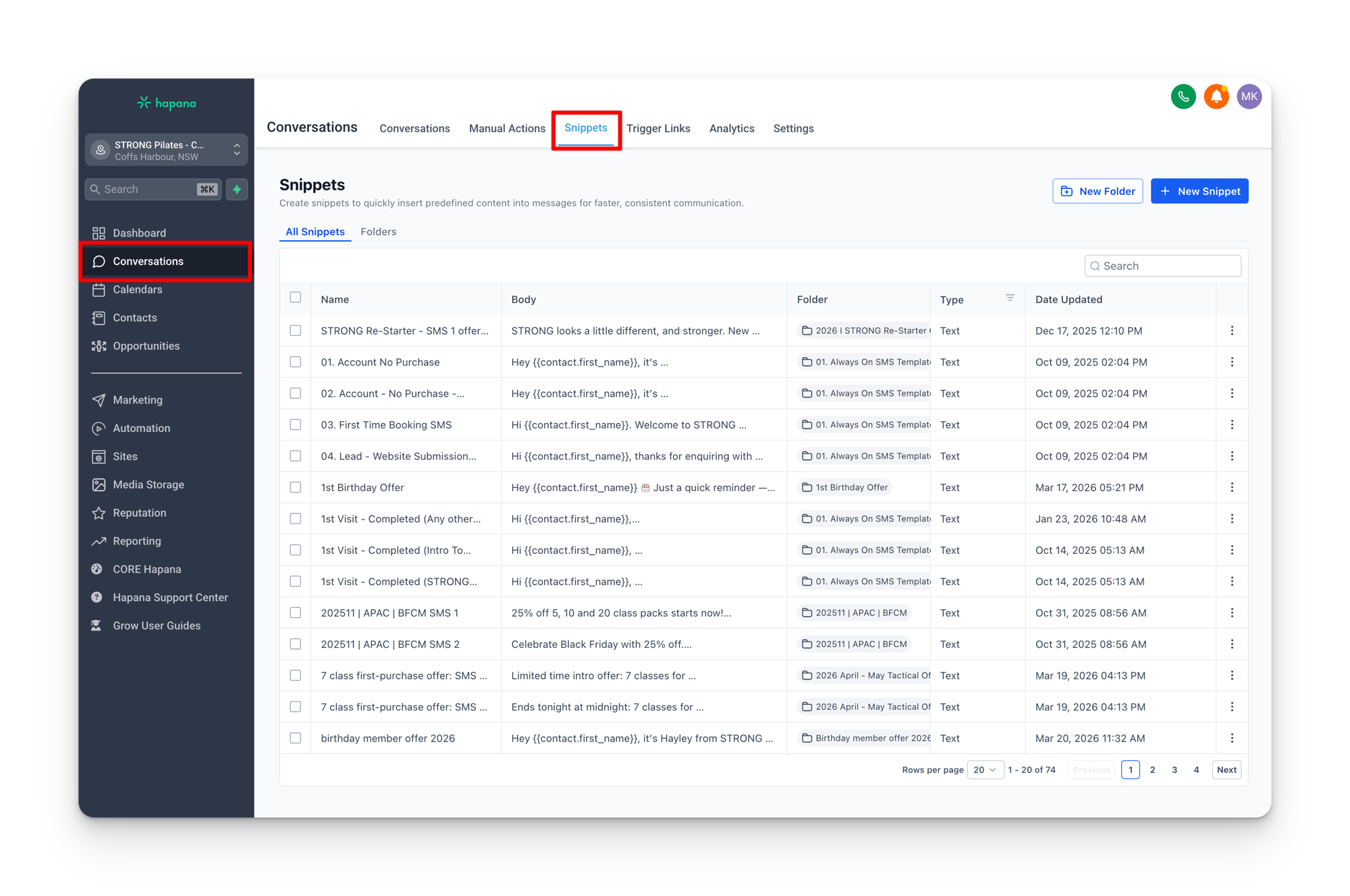
- Conversations > Snippets tab: the sub-menu at the top of the Conversations page has a Snippets link. This is where you browse, edit, and manage all snippets.
- Insert Snippet button: when composing a message in the Conversations inbox, click Insert Snippet to search and select a snippet. The message body populates the compose area and you can send it as is or edit before sending.
How snippets connect to workflows
Most snippets are not just for manual use. Workflows reference snippets by name as the content for their SMS actions. When a workflow fires and sends an SMS, it pulls the message body from the linked snippet.
Editing a snippet affects workflows
If you change the text of a snippet, that change applies everywhere the snippet is used, including automated workflows. Before editing, consider whether the snippet is referenced by a workflow. If unsure, check the workflow first.
Custom values inside snippets
Snippets use custom values and contact fields to personalize each message. The most common placeholders you will see:
| Placeholder | What it becomes |
|---|---|
{{contact.first_name}} | The contact's first name |
{{custom_values.fromname_lead}} | The staff name used in lead messages |
{{custom_values.fromname_member}} | The staff name used in member messages |
{{custom_values.location_short}} | The studio's short name (e.g. “Melbourne CBD”) |
{{custom_values.strong_intro_offer_price}} | The current intro offer price for that location |
{{custom_values.google_review_url}} | Direct link for Google reviews |
If any of these custom values are empty in your location's settings, the placeholder will render as blank in the message. See the Custom Fields vs Custom Values page for how to check and fill these in.
Snippet categories
The snippets in the template account fall into several functional groups. You do not need to memorize all of them, but understanding the categories helps you find the right snippet when you need it and understand what automated messages your contacts are receiving.
Lead follow-up
These fire when a new lead enters the system, whether from a website form, Facebook ad, or account creation in Core. They introduce the studio and open a conversation.
| Snippet | When it sends |
|---|---|
| 04. Lead – Website Submission SMS | Immediately after a lead fills out a website enquiry form |
| 01. Account No Purchase | When someone creates an account in Core but has not purchased anything |
| Lead – SE – Call No Answer 1/2/3 | After each failed call attempt to a lead |
Example message (04. Lead – Website Submission):
Hi {{contact.first_name}}, thanks for enquiring with STRONG Pilates {{custom_values.location_short}}. {{custom_values.fromname_lead}}here. I'll touch base with you shortly to help answer any questions you might have.
Call booking
Sent when a lead books, cancels, or misses a phone call consultation.
| Snippet | When it sends |
|---|---|
| Call Booked – Confirmation | Immediately after booking a call |
| Call Booked – 1 hr reminder | One hour before the scheduled call |
| Call Booked – Cancelled | When the appointment is cancelled |
| Call Booked – No Show | When the lead misses the call |
Intro offer journey
These guide a contact through their intro offer experience, from purchase to completion. Each message is timed to a specific stage in the journey.
| Snippet | When it sends |
|---|---|
| STRONG Intro Offer | After purchasing the intro offer |
| STRONG Intro Offer not booked | If they have not booked their first class yet |
| STRONG Intro Offer first class info | Before their first class (arrival instructions) |
| STRONG Intro Offer first class complete | After completing their first class |
| STRONG Intro Offer halfway | Midway through the intro offer period |
| STRONG Intro Offer want more STRONG | Near the end of the offer, nudging membership conversion |
Example message (first class info):
Hi {{contact.first_name}}. Welcome to STRONG {{custom_values.location_short}}. Please arrive 15 minutes before your class so your instructor can introduce you to the Rowformer/Bikeformer and get you set up. Bring a water bottle and a towel. See you there!
First visit and membership
Messages that fire after a contact completes their first class or joins as a member.
| Snippet | When it sends |
|---|---|
| 1st Visit – Completed (Intro To Strong) | After first class on the intro offer |
| 1st Visit – Completed (Any other package) | After first class on any non-intro package |
| Welcome to membership | When a contact converts to a full membership |
Example message (1st Visit – Completed):
Hi {{contact.first_name}}, {{custom_values.fromname_member}} here from STRONG. Well done on completing your first STRONG Pilates class today. How did you go?
This is the message that uses FromName_Member
If FromName_Member is not filled in for your location, this message will read “(PLEASE ADD) Lead Manager/Staff Name here from STRONG” instead of an actual name. See the Custom Fields vs Custom Values page for how to fix this.
Retention and engagement
| Snippet | Purpose |
|---|---|
| Survey / Survey reminder | Sent a few weeks into membership asking for feedback |
| Refer a Friend SMS | Encourages members to refer friends for credit |
| Free credit | Offers a free class in exchange for a Google review |
Campaign and promotional snippets
The largest group by volume. These are created for specific campaigns (BFCM, EOFY, STRONG Week, seasonal offers) and often have regional variants for different pricing and currency. You will see naming patterns like:
- Date prefix:
202511 | BFCM | SMS 1tells you it is from November 2025 for Black Friday/Cyber Monday - Region prefix:
AUS | SMS 1 | Lapsed | September Half Pricetells you the region, sequence number, audience, and campaign - Sequence number: SMS 1, SMS 2, SMS 3 indicate the order in the campaign drip sequence
Campaign snippets are deployed via snapshot alongside the workflows that reference them. You typically do not need to create these yourself.
Editing snippets
To edit a snippet:
- Go to Conversations > Snippets
- Find the snippet you want to change
- Click the three dots and select Edit SMS
- Make your changes and save
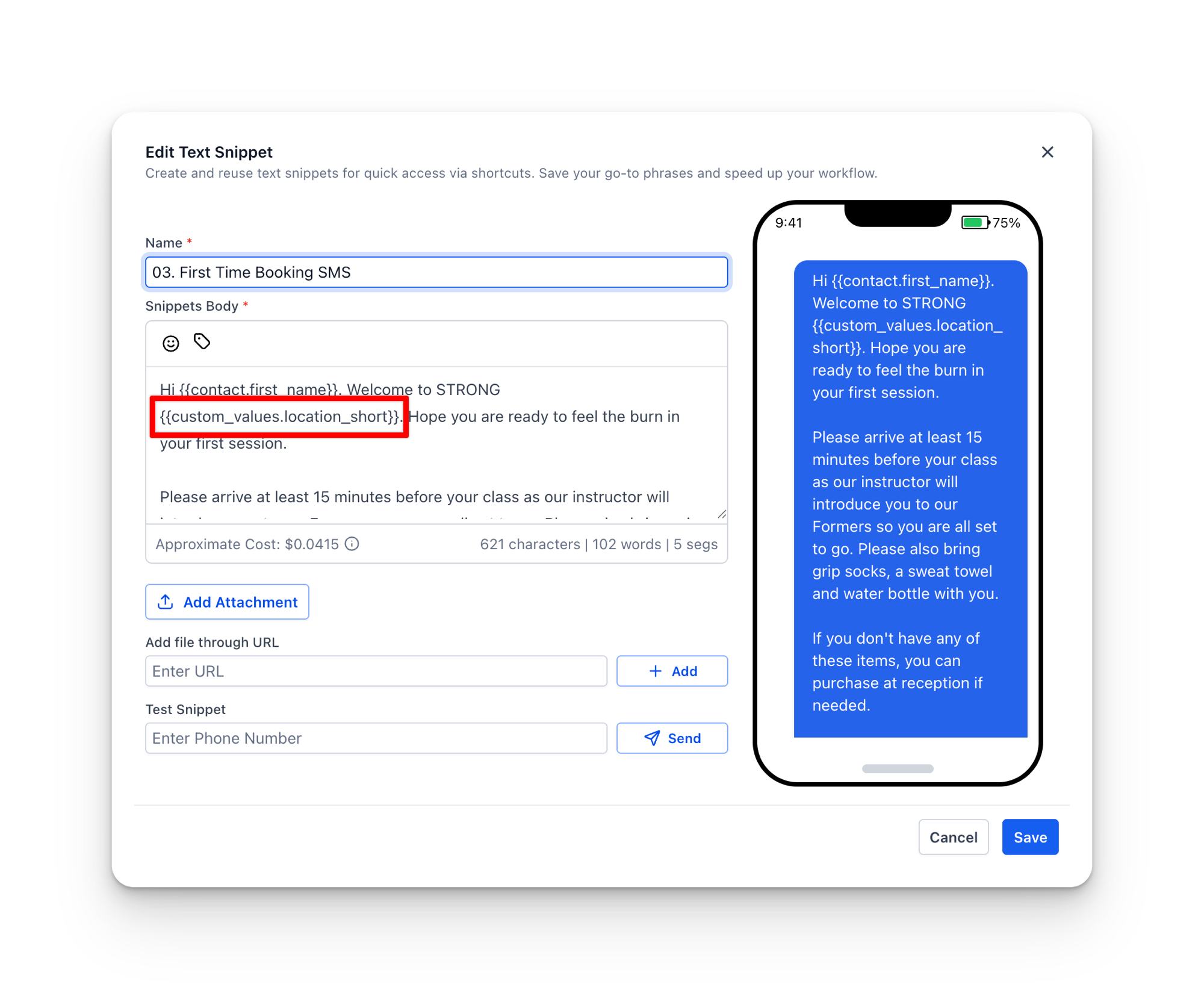
Your changes take effect immediately. If the snippet is used in a workflow, the next time that workflow fires, it will use the updated text.
Do not rename snippets
Workflows reference snippets by their internal ID, not by name. Renaming a snippet will not break anything, but creating a new snippet and deleting the old one will. If you need to update content, edit the existing snippet rather than replacing it.
Common mistakes
- Empty custom values in snippets. If a snippet uses
{{custom_values.location_short}}and that value is blank for your location, the message will have a gap where the studio name should be. Check your custom values after every snapshot deployment. - Hardcoded links in older snippets. Some older snippets use direct URLs like
link.strongpilates.co/strong-classesinstead of custom value placeholders. These work but are not location-specific. If you see one, leave it as is unless instructed otherwise by HQ. - Regional variants sent to the wrong audience. Campaign snippets often have region-specific pricing baked into the text ($50, £49, 349,500 Rp). These are matched to specific workflows. If you are looking at a snippet and the pricing looks wrong, check whether it is the correct regional variant for your location.