Conditions are the decision points inside a workflow. While triggers determine whether a workflow starts and actions determine what happens, conditions determine which path the contact takes. They ask a question about the contact, and based on the answer, route them down a different branch.
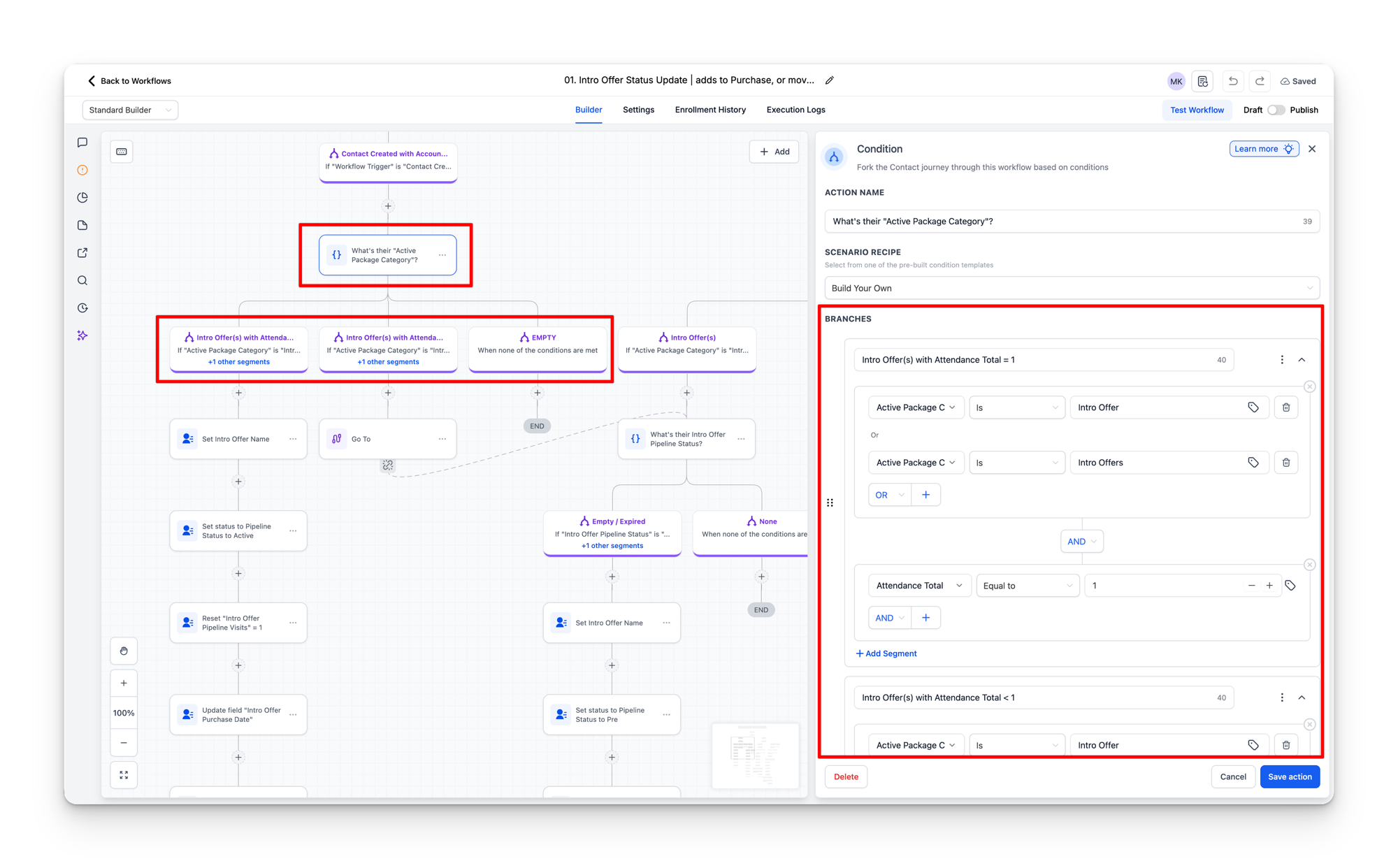
In the workflow builder, conditions appear as the If/Elseaction. When you see a purple node with curly braces and a question like “What's their Active Package Category?”, that is a condition. Below it, multiple branches fan out, each handling a different answer.
How conditions work
Every condition has a question (the action name) and one or more branches. Each branch defines a set of rules. When the workflow reaches the condition, it evaluates each branch from top to bottom. The contact goes down the first branch whose rules match.
If no branch matches, the contact goes down the default branch, typically labeled “EMPTY” or “None” (shown as “When none of the conditions are met”). This is the fallback path that catches everything else.
Branch logic: OR and AND
A single branch can check multiple things. The rules inside a branch are combined with OR and AND operators:
- OR means the branch matches if anyof the conditions are true. In the screenshot, the first branch checks “Active Package Category Is Intro Offer ORActive Package Category Is Intro Offers.” This catches both the singular and plural spelling variants.
- AND means the branch requires allconditions to be true. The same branch also requires “Attendance Total Equal to 1.” So the full logic is: (Active Package Category is “Intro Offer” OR “Intro Offers”) AND (Attendance Total equals 1).
This lets a single branch express complex logic. The branch in the screenshot is asking: “Does this contact have an intro offer package AND have they attended exactly one class?”
What conditions check
Conditions can check any contact field, tag, or pipeline state. The most common checks in STRONG workflows:
| What it checks | Example question | Used for |
|---|---|---|
| Active Package Category | “Do they have Memberships or Packages?” | Routing contacts differently based on whether they are on an intro offer, a membership, or have no active package |
| Active Package | “Does their Active Package contain STRONG Intro?” | Identifying the specific package type to send the right messaging |
| Attendance Total | “What's their Attendance Total?” | Milestone notifications (47, 97, 197, 497, 997 classes) or checking if they have attended at all |
| Location Status | “Is their Location Status inactive?” | Removing contacts from nurture workflows when they become inactive |
| Tags | “Do they have the 60 day member nurture tag?” | Preventing contacts from going through a sequence twice |
| DND status | “Do they have DND on?” | Skipping SMS actions for contacts who have opted out |
| Pipeline status fields | “Is the Pipeline Status still Pre?” | Checking whether a contact has progressed in the intro offer pipeline before taking action |
Common branching patterns
Yes/No check
The simplest pattern. The condition asks a yes/no question and has two branches: one for yes and one for no (or a default fallback). Examples:
- “Is their Active Package empty?” → Yes branch creates a pipeline opportunity. No branch (default) does nothing.
- “Is their Location Status inactive?” → Yes branch removes them from the 60 Day Member Journey workflow. Default does nothing.
Multi-way routing
The condition has three or more branches, each handling a different scenario. The screenshot above shows four branches based on Active Package Category and Attendance Total. Another common example is the Attendance Milestones workflow, which branches on Attendance Total with five paths (47, 97, 197, 497, 997) to send different milestone notifications.
Guard check
A condition placed early in the workflow to verify that the contact still qualifies before proceeding. The workflow checks “Do they still have Intro Offer in their Active Package Category?” and only continues down the Yes branch. If the answer is no (they converted or went inactive since the workflow started), the default branch ends the workflow. This prevents stale contacts from receiving messages that no longer apply.
Guard checks after Wait steps
You will often see a Wait step followed immediately by a condition that re-checks the contact's status. This is intentional. A contact might sit in a Wait for days. By the time the Wait ends, their situation may have changed. The guard check ensures the workflow only continues if the contact's current state still warrants the next action.
Duplicate safety check
A condition that checks whether a specific action has already been performed for this contact, preventing it from happening twice. For example: “Has the first SMS been sent before? (has been tagged with sms_sent_first visit)”. If the tag exists, the contact already received that SMS and the workflow skips it.
Nested conditions
Conditions can be nested. A branch from one condition can lead to another condition further down the workflow. STRONG workflows use this extensively. A common pattern:
- First condition: “What's their Active Package Category?” (routes to Intro Offer branch)
- Second condition (inside the Intro Offer branch): “What's their Intro Offer Pipeline Status?” (routes to Active, Pre, or Expired)
- Third condition (inside the Active branch): “How many visits do they have?”
Each level narrows down the contact's situation until the workflow reaches the right action for their exact state.
The default branch matters
Every condition has a default branch for contacts that do not match any of the defined branches. In well-built workflows, the default branch is intentional. Sometimes it leads to an END step (the contact exits the workflow). Sometimes it leads to a different set of actions. Sometimes it does nothing and lets the contact fall through to the next step below the condition block.
Do not ignore the default branch
If you are reviewing a workflow and trying to understand why a contact received (or did not receive) a specific message, always check the default branch. Contacts who do not match any named branch end up here. A common troubleshooting scenario is a contact falling into the default branch because their data did not match any of the expected conditions (e.g. a field was blank or had an unexpected value).