Email templates are the designed, branded emails that your workflows and campaigns send to contacts. Unlike SMS snippets which are plain text, email templates use a drag-and-drop visual builder with images, buttons, layout blocks, and styled text. The template account currently has over 300 email templates covering lead nurture, intro offer journeys, membership communications, brand storytelling, appointment confirmations, and campaign promotions.
Where to find them
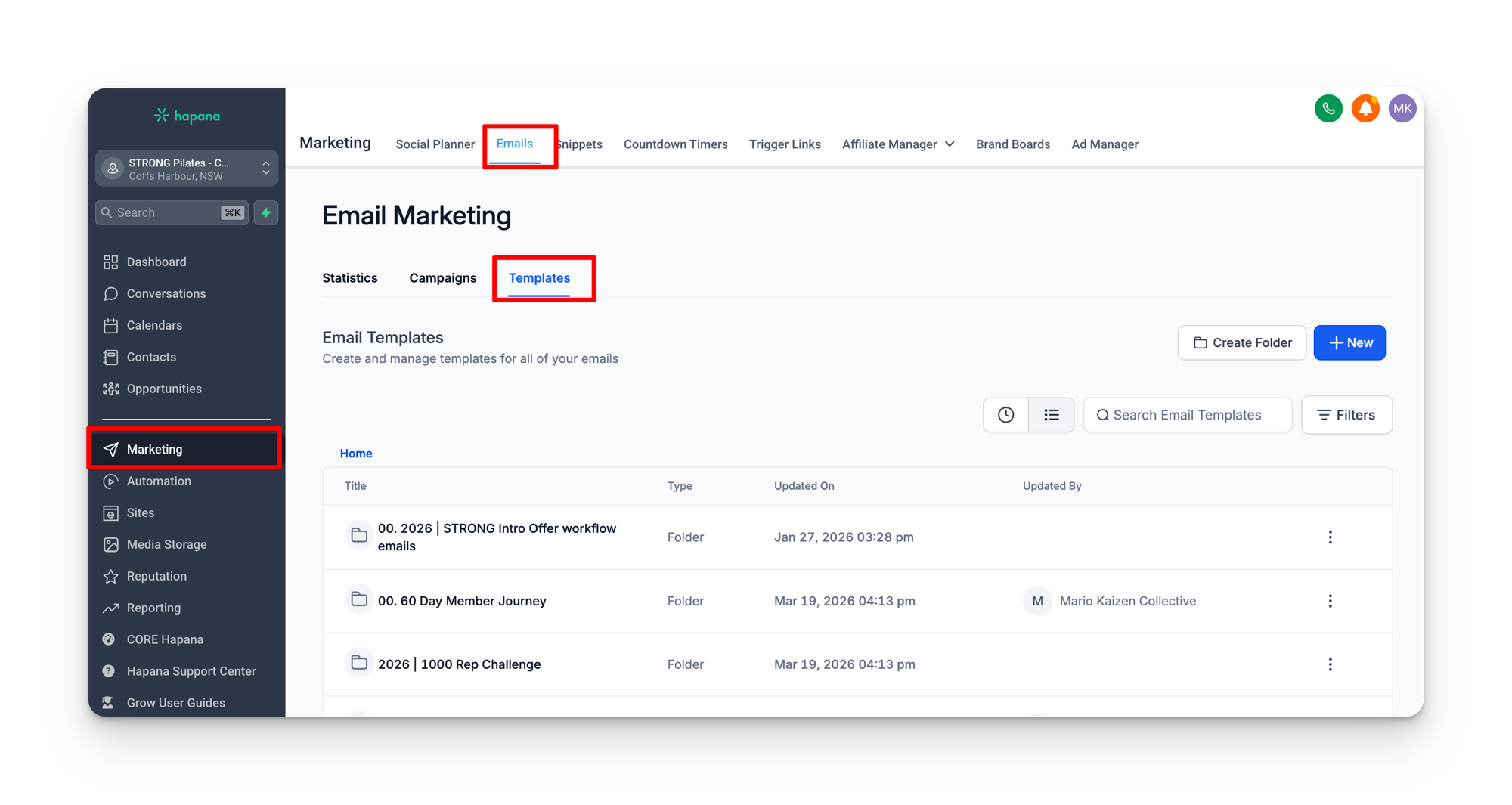
Email templates live in Marketing > Emails. From there you can browse all templates, search by name, and open the visual builder to preview or edit any template. Each template shows its name, subject line, and when it was last modified.
How email templates connect to workflows
Just like SMS snippets, email templates are referenced by workflows. When a workflow includes a “Send Email” action, it points to a specific email template. The workflow handles the timing, conditions, and audience. The template handles the content and design.
Editing a template affects every workflow that uses it
Changes to an email template apply everywhere it is referenced. If a template is used across multiple workflows, updating it once updates it in all of them. Check which workflows reference a template before making changes.
From address and from name
Every email template has a From Name and From Emailconfigured. These determine who the email appears to come from when it lands in the contact's inbox. Most templates use the location's general email address and studio name, but some use custom values or the logged-in user's details. If a contact replies to an automated email, the reply comes back into the Conversations inbox.
Template categories
The email templates in the template account fall into functional groups. Understanding these helps you know what automated emails your contacts are receiving and where to look when you need to review or update one.
Appointment confirmations
Sent when a contact books, cancels, or is about to attend a scheduled appointment or consultation.
| Template | When it sends |
|---|---|
| Immediate Confirmation Email | Right after booking an appointment |
| 24 Hour Confirmation Email | Reminder sent 24 hours before the appointment |
| Cancelled Confirmation Email | When an appointment is cancelled |
Intro offer and STRONG Experience nurture
A sequence of emails that guides contacts through their trial period. Each email is timed to a specific point in the journey and builds on the last.
| Template | Purpose |
|---|---|
| STRONG Intro Offer Email 1 | Welcome email after purchasing the intro offer |
| STRONG Intro Offer Email 2 – Meet the Rowformer | Introduces the equipment and builds excitement before first class |
| Email – Intro Offer Complete | Sent when the intro offer period ends |
| Email – Membership Upsell | Nudges conversion from intro offer to full membership |
| Want more STRONG? | Follow-up for contacts who completed a trial but have not converted |
Regional variants
Many intro offer and experience templates have regional variants with different pricing, currency, and links. When reviewing these, make sure you are looking at the variant that matches your location's region.
Brand and content emails
These are not tied to a specific action. They tell the STRONG story and build connection with the brand. Workflows drip these to new contacts over time.
| Template | Content |
|---|---|
| STRONG Brand Story | The origin and philosophy behind STRONG Pilates |
| Class Types | Overview of the different class formats available |
| Behind the Programming | How STRONG designs its workout programming |
| More Than Pilates | Positioning STRONG as a full training system |
| Training for Longevity | Long-term fitness and health benefits |
Membership communications
| Template | When it sends |
|---|---|
| Welcome to the STRONG Family | After converting to a full membership |
| Your STRONG Membership | Onboarding information for new members |
| Milestones | Celebrating attendance milestones |
| Feedback Survey | Requesting feedback after a set period of membership |
| Free Class Credit | Rewarding members for leaving a Google review |
Presale emails
Used for locations that have not opened yet. These build anticipation and drive early registrations.
| Template | Purpose |
|---|---|
| PS1 – New Lead Coming Soon | First email to presale leads |
| PS3 – New Lead STRONG VIP | VIP registration confirmation |
| PSB – What to Expect | Pre-opening broadcast about what the studio will offer |
| PSB – Meet Your Workout Partner | Introduces the Rowformer and Bikeformer equipment |
Campaign and promotional emails
The largest group by volume. These are created for specific campaigns and deployed via snapshot. Common campaign types include:
- BFCM (Black Friday/Cyber Monday): multi-email sequence with regional pricing variants
- EOFY (End of Financial Year): discount campaigns for Australian locations
- STRONG Week: an 8-day email sequence with daily content and promotions
- Starter/Re-Starter: 7-email sequence for new lead acquisition and lapsed member re-engagement
Campaign emails follow the same naming pattern as SMS snippets: date prefix, region, sequence number, and audience. For example, Email 2 | AUS | Lapsed | 5 SESSIONS 50% OFF is the second email in the sequence, for Australian locations, targeting lapsed members, promoting the 50% off 5-session offer.
The email builder
When you open a template for editing, you see the drag-and-drop visual builder. This is where you can update text, swap images, change button links, and adjust the layout. The builder works with blocks that you can rearrange, duplicate, or delete.
Key things to know about the builder:
- Custom values work in email templates too. Placeholders like
{{custom_values.location_short}}and{{contact.first_name}}can be inserted into any text block. They render with the real values when the email sends. - Images are stored in Media Storage. Any images used in email templates are pulled from your Media Storage section. If an image appears broken, check whether the file still exists in Media Storage.
- Subject lines support custom values. You can personalize subject lines with contact fields (e.g. “Hey {{contact.first_name}}, your STRONG journey starts now”).
Template Settings: subject line and preview text
Every email template has settings that control what the recipient sees before they open the email. To access these, click the three dots in the top right of the builder, then click Settings.
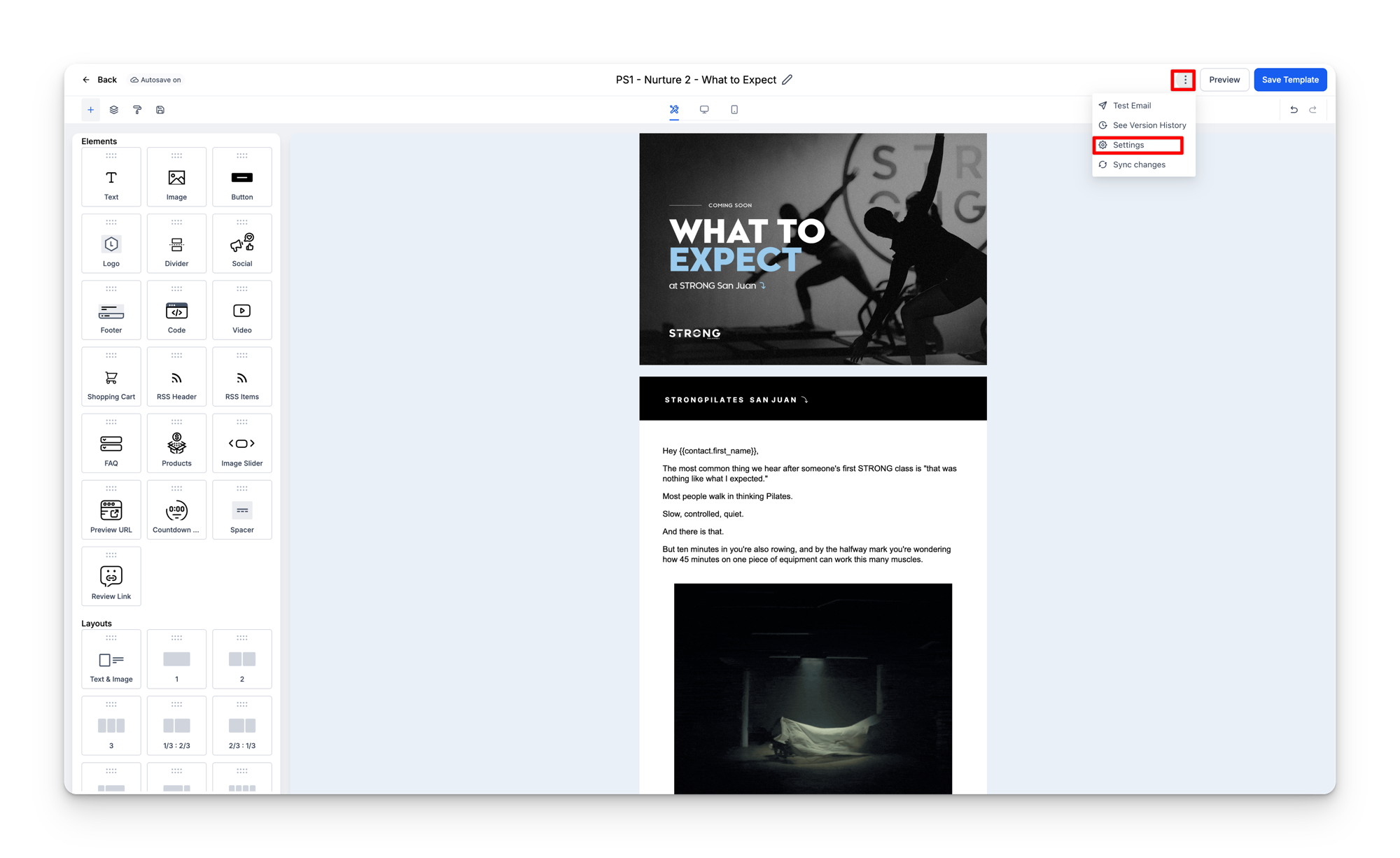
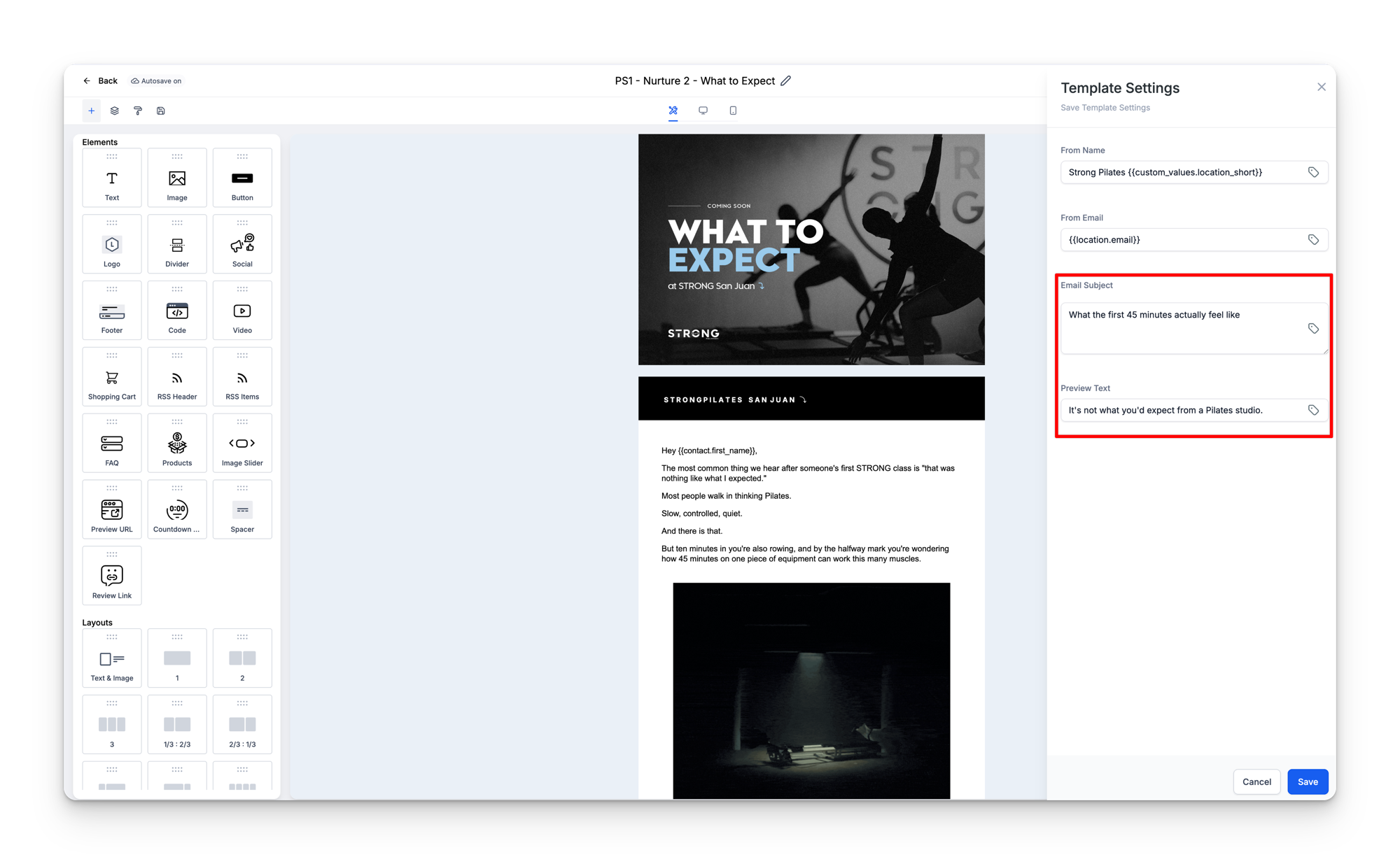
The Template Settings panel has four fields you should always check:
| Field | What it controls |
|---|---|
| From Name | Who the email appears to come from (e.g. “Strong Pilates {{custom_values.location_short}}”) |
| From Email | The reply-to address (e.g. {{location.email}}) |
| Email Subject | The subject line the recipient sees in their inbox |
| Preview Text | The short text shown after the subject line in most email clients |
Always set the subject line and preview text
When editing or reviewing any email template, open the Template Settings and confirm the subject line and preview text are filled in and match the email content. A missing or outdated subject line makes the email look unprofessional and reduces open rates. The preview text is the short line that appears after the subject in most inbox apps. If left blank, email clients will pull the first line of body text instead, which is often a placeholder or “View in browser” link.
Common mistakes
- Editing the wrong regional variant. Many templates have multiple versions for different regions. If you edit the AUS version thinking it applies to all locations, the UK, US, and EU versions will be unchanged. Check the template name carefully.
- Broken images after a snapshot. When a snapshot is deployed to your location, email templates come with the images from the template account. If the image URLs reference the template account's media storage, they should still work. But if you delete images from your own Media Storage that a template references, the images will break.
- Forgetting to update the subject line and preview text. When editing email content, people often update the body but forget that the subject line and preview text also need to match the new content. Open Template Settings every time you edit a template.
- Creating a new template instead of editing. Just like with SMS snippets, workflows reference templates by ID. If you create a new template and delete the old one, the workflow will break. Always edit the existing template.