A trigger is the event that starts a workflow. Nothing happens until a trigger fires. When you open a workflow in the builder, triggers sit at the very top of the canvas. A workflow can have one trigger or several. If it has multiple triggers, any one of them firing will start the workflow for that contact.
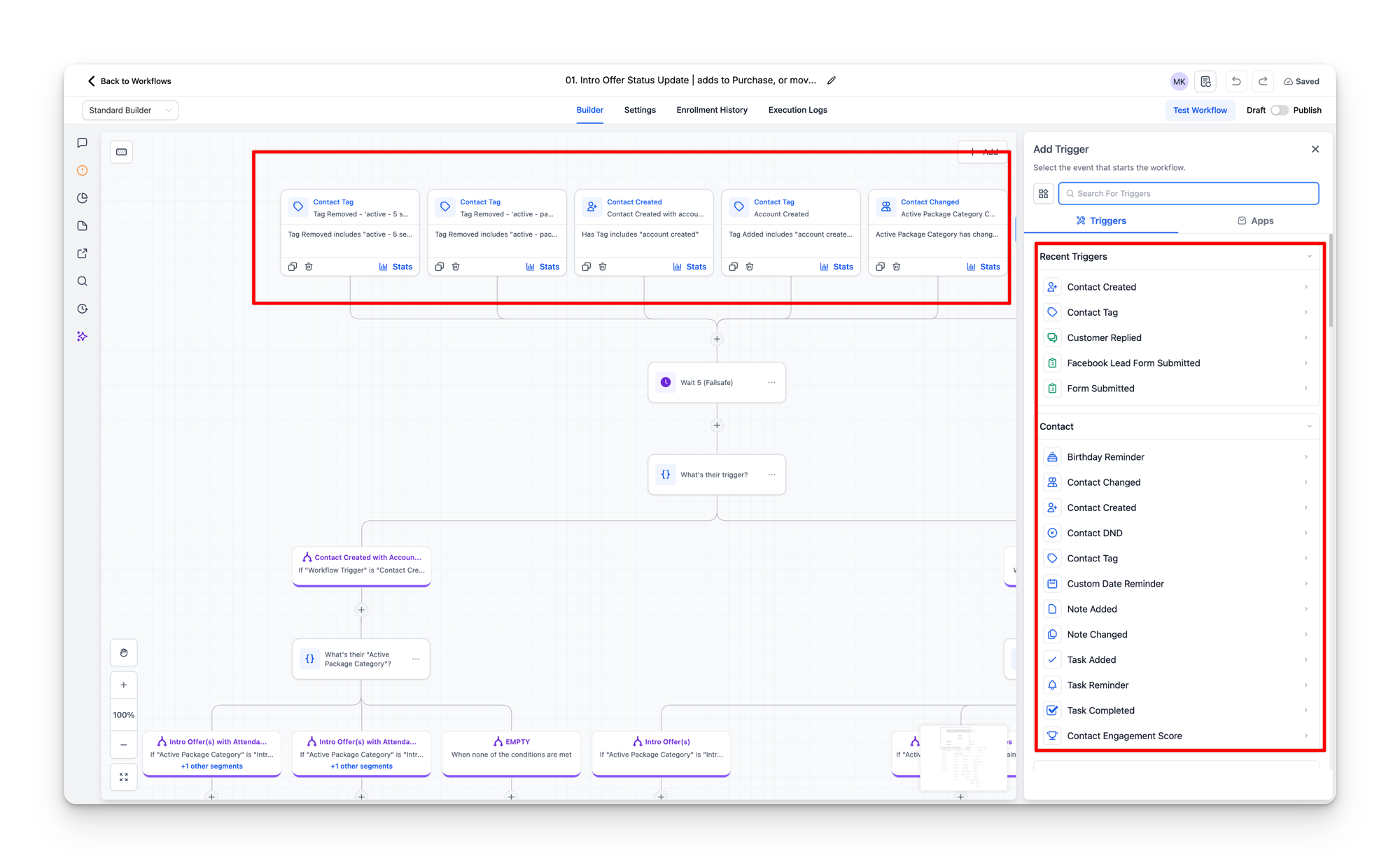
Trigger types used in STRONG workflows
The Add Trigger panel shows every trigger type available. In practice, STRONG workflows use a handful of them repeatedly. Here are the trigger types you will encounter, ordered by how often they appear.
Contact Changed
The most common trigger by far. It fires when a specific custom field on a contact record changes value. Almost half of all triggers in the template account are Contact Changed triggers.
Each Contact Changed trigger watches a specific field and can be set to fire in two ways:
- Has changed (any change): fires whenever the field value changes to anything. Used for fields like Active Package and Attendance Total where you want to react to any update.
- Equals a specific value: fires only when the field changes to a particular value. Used for fields like Location Status(fire only when it equals “inactive”) or STRONG Intro Offer Visits (fire only when it equals 1 or 5).
Examples from published workflows:
| Workflow | Trigger field | Condition |
|---|---|---|
| Active Package Change | Active Package | Has changed (any value) |
| Attendance Milestones | Attendance Total | Has changed (any value) |
| Intro Offer First Class Complete | STRONG Intro Offer Visits | Equals 1 |
| Intro Offer 5 Visits | STRONG Intro Offer Visits | Equals 5 |
| Location Status Inactive | Location Status | Equals “inactive” |
| Weekly Check-ins | Attendance Total | Has changed (any value) |
Why Contact Changed is so common
STRONG uses Hapana Core as the source of truth for membership data. When Core syncs data into Grow, it updates contact fields like Active Package, Attendance Total, and Location Status. Each of those field updates fires any Contact Changed trigger that is watching that field. This is how Grow reacts to events that happen in Core without needing a direct integration.
Contact Created
Fires when a new contact is created in Grow. This can happen via the Core sync (when someone creates an account in Core, the sync creates a matching contact in Grow), via a form submission, or via manual creation.
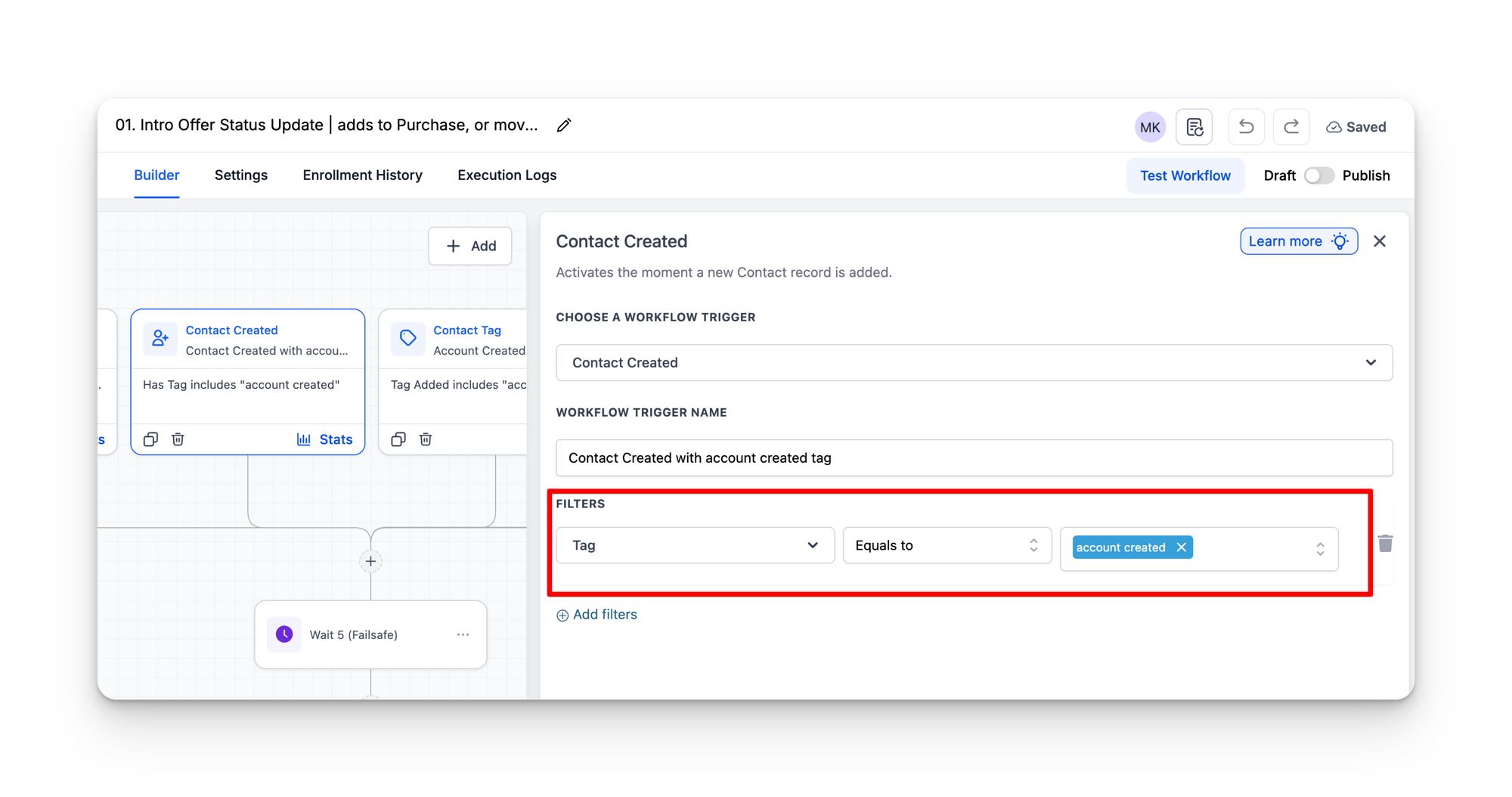
Contact Created triggers in STRONG workflows almost always include a filter. The most common filter is Has Tag “account created”, which ensures the workflow only fires for contacts that came through the Core sync (Core adds this tag automatically). This prevents the workflow from firing when a contact is created manually or from a different source.
Pipeline Stage Updated
Fires when a contact's opportunity moves to a specific stage in a specific pipeline. The trigger requires both the pipeline and the target stage to be configured. Used in STRONG workflows for:
- Call No Answer sequences: when a lead is moved to a “Call No Answer” stage, the workflow sends a follow-up SMS.
- Intro Offer progression: when a contact reaches Day 14 in the Intro Offer Pipeline, the workflow sends the completion email and membership upsell.
Contact Tag
Fires when a tag is added to or removed from a contact. The trigger specifies which tag and whether it should fire on add or remove. In STRONG workflows, tag triggers are used for:
- Detecting when a contact's active package type changes (the sync adds and removes tags like
active - intro offerandactive - member). - Reacting to manual tag changes by team members (e.g. adding a tag to enrol someone in a specific workflow).
Customer Replied
Fires when a contact sends a reply via SMS or email. The trigger can filter by reply channel (SMS only, email only, or any) and by the content of the reply. STRONG uses this for:
- STOP detection: when a contact replies “STOP” via SMS, the workflow marks the conversation as read, moves them to “Unsubscribed” in the pipeline, and removes them from active nurture workflows.
- Reply-based enrolment: some presale broadcasts ask contacts to reply “YES” to register. The workflow watches for that reply and creates an opportunity when it detects it.
Form Submitted
Fires when a contact submits a specific form. Each trigger is linked to a particular form by ID. The main example in STRONG is the Website Submission workflow, which fires when a lead fills out the website enquiry form.
Birthday Reminder
Fires on a contact's birthday (based on their Date of Birth field). STRONG uses this to send the studio an internal notification and create a task to prepare for the member's birthday (e.g. writing a card, having the instructor acknowledge them in class).
Appointment
Fires when an appointment is booked, cancelled, or marked as a no show. Used for call booking workflows that send confirmation SMS, reminder SMS, and no-show follow-ups.
Trigger filters
Most triggers include filters that narrow down when they fire. A Contact Created trigger without a filter would fire for every single new contact, regardless of source. Filters let you restrict the trigger so it only fires when specific conditions are met.
When you click on a trigger in the builder, the configuration panel opens on the right. At the bottom you will see a Filters section. This is where the trigger is scoped to only fire for the right contacts or events.
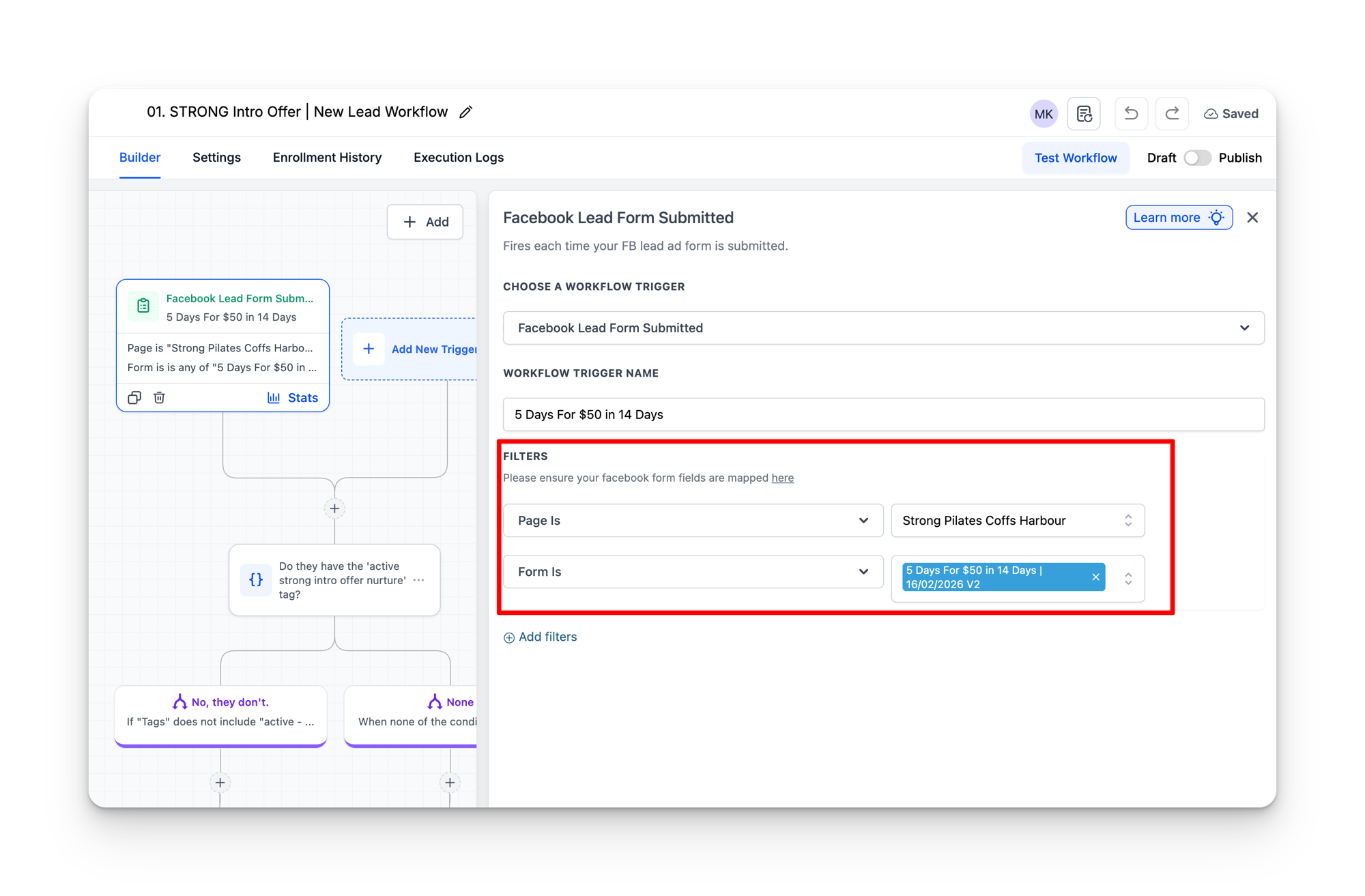
Different trigger types offer different filter options. A Facebook Lead Form Submitted trigger, for example, lets you filter by both the Facebook Page and the specific Form. This ensures the workflow only fires for leads from the correct ad campaign and location.
Common filter types you will see on STRONG triggers:
- Tag: the contact must have (or not have) a specific tag. The most common filter on Contact Created triggers.
- Field equals: a contact field must match a specific value.
- Page Is / Form Is: for Facebook Lead Form triggers, restricts to a specific Facebook page and lead form.
- In pipeline / Pipeline stage: the contact must have an opportunity in a specific pipeline or be at a specific stage.
- Contains phrase: for reply triggers, the message must contain specific text (e.g. “STOP”).
Filters are part of the trigger, not the workflow
Trigger filters determine whether the workflow starts at all. If a contact does not match the filter, the workflow never fires for them. This is different from an If/Else condition inside the workflow, which runs after the workflow has already started. Use filters to prevent irrelevant contacts from entering the workflow in the first place.
Multiple triggers on one workflow
A workflow can have more than one trigger. The Intro Offer Status Update workflow (shown in the screenshot above) has five triggers: two Contact Tag triggers, a Contact Created trigger, another Contact Tag trigger, and a Contact Changed trigger. Any one of these firing will start the workflow for that contact.
Multiple triggers are used when the same workflow needs to react to different events. The Intro Offer Status Update needs to catch contacts who arrive via the Core sync (Contact Created with “account created” tag), contacts whose active package changes (Contact Changed on Active Package), and contacts whose relevant tags are added or removed (Contact Tag triggers).
Triggers are OR, not AND
When a workflow has multiple triggers, they operate as OR logic. Any single trigger firing is enough to start the workflow. They do not all need to fire. If you need AND logic (multiple conditions must all be true), that is handled inside the workflow using conditions, not at the trigger level.
Workflows without triggers
Some workflows in the template account have no trigger at all. These workflows do not start on their own. Instead, another workflow adds the contact to them using an “Add to Workflow” action. This pattern is used when a workflow is meant to be a reusable sub-sequence called from multiple places. For example, the presale nurture email sequence is a standalone workflow that other presale workflows add contacts into.
If you open a workflow and see no triggers at the top, that means it is started by another workflow, not by an event.