A workflow is a set of instructions that runs automatically when something happens. Every automated SMS, every email sequence, every pipeline stage update, every tag that gets added behind the scenes: workflows are what make all of it happen. If contacts, pipelines, snippets, and email templates are the building blocks, workflows are the engine that connects them.
When you saw automated messages appearing in a contact's conversation history, a workflow sent them. When a contact moved from one pipeline column to the next without anyone dragging them, a workflow moved them. When a tag appeared on a contact record that nobody manually added, a workflow applied it. Almost everything that happens automatically in Grow traces back to a workflow.
Where to find workflows
Workflows live in Automation > Workflows in the sidebar. When you open this page, you see all workflows organized into folders. The template account has over 300 workflows across more than 60 folders. Most of these are deployed to your location via snapshot.
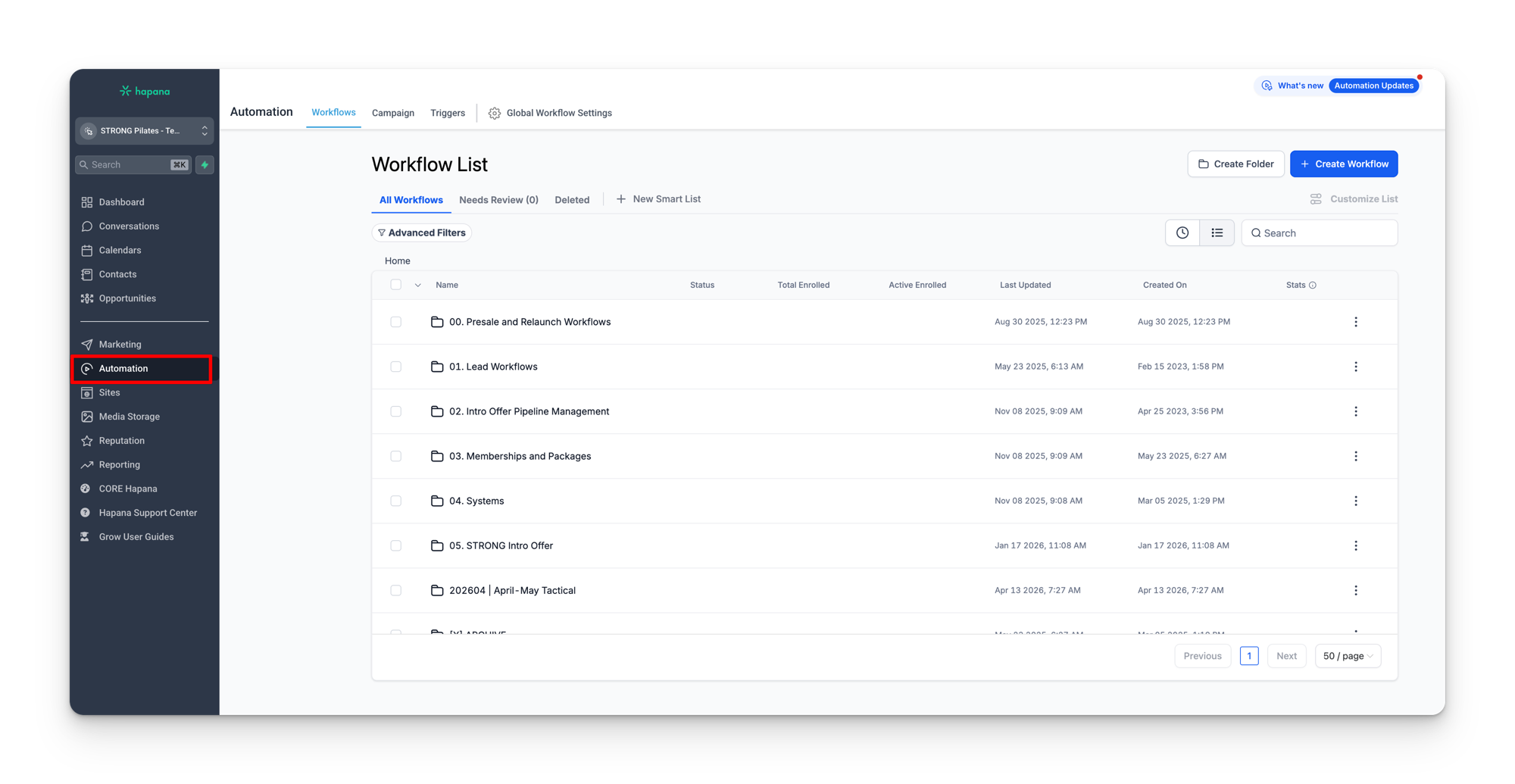
Each workflow in the list shows its name, the folder it belongs to, its status (published or draft), and when it was last updated. You can search by name or filter by folder to find a specific one.
How a workflow works
Every workflow follows the same structure:
- A trigger fires. Something happens that starts the workflow. A contact's field changes, a form is submitted, a tag is added, a pipeline stage is updated. The trigger is the entry point.
- Actions execute in order. The workflow runs through a sequence of steps: send an SMS, send an email, add a tag, update a pipeline opportunity, wait a set amount of time, then continue to the next step.
- Conditions check before proceeding. At any point in the sequence, the workflow can check a condition before deciding what to do next. Does the contact have a specific tag? Is their active package category “Memberships”? Based on the answer, the workflow takes a different path.
These three components (triggers, actions, and conditions) are covered in detail in the next three sections. This page focuses on the concepts you need before diving into those details.
A real example
Here is what the Website Submissionworkflow does when a lead fills out the enquiry form on your studio's website:
- Trigger: a form submission is detected on your website enquiry form.
- Sets the contact's Contact Sourcefield to “Website.”
- Sends an internal notification to the studio so the team knows a new lead came in.
- Sends the lead a welcome email(“Welcome to STRONG Pilates {{custom_values.location_short}}”).
- Adds the lead tag to the contact.
- Checks: is the contact's Active Package field empty?
- If yes, creates an opportunity in the Leads Pipeline so the contact appears on the pipeline board for follow-up.
All of that happens within seconds of the form being submitted, with no manual work. The lead gets a welcome email, the studio gets notified, and the contact shows up in the pipeline ready for follow-up. That is what workflows do.
Published vs draft
Every workflow has a status: published or draft.
- Published means the workflow is live and actively running. When its trigger fires, the workflow executes. Of the 300+ workflows in the template account, roughly 90 are published. These are the ones doing work every day.
- Draft means the workflow exists but is not running. It will not fire even if its trigger conditions are met. Draft workflows include archived seasonal campaigns, regional variants that are not active, presale workflows for locations that have already opened, and templates that exist as starting points for future campaigns.
Publishing and unpublishing workflows
Changing a workflow from draft to published (or vice versa) takes effect immediately. If you accidentally publish a draft workflow, it will start firing on any contact that meets its trigger conditions. If you unpublish a published workflow, contacts currently inside it will stop progressing. Be deliberate about status changes.
Folder structure
Workflows are organized into numbered folders that group them by function. The main folders you will see in the template account:
| Folder | What it contains |
|---|---|
| 00. Presale | Workflows for locations that have not opened yet (lead nurture, VIP registration, call booking) |
| 01. Lead Workflows | Website submission handling, first booking SMS, first visit follow-up, lead pipeline management |
| 02. Intro Offer | Everything from intro offer purchase through to expiry or membership conversion, including the day-by-day pipeline progression |
| 03. Memberships | 60-day member journey, attendance milestones, birthday notifications, days absent alerts, suspension handling |
| 04. Systems | Background workflows that keep data in sync (field updates, date stamps, attendance tracking, weekly and monthly check-in counters) |
| 05. STRONG Intro Offer | Intro offer SMS and email sequences (first class info, halfway check-in, completion, membership upsell) |
| Date-prefixed folders | Campaign workflows tied to a specific period (e.g. 202604 | April-May Tactical) |
| [X] ARCHIVE | Past campaigns and seasonal promotions (BFCM, EOFY, challenges) kept as drafts for reference or reuse |
Campaign folders are prefixed with a date (e.g. 202511 | BFCM) so they sort chronologically. Archived folders start with [X] to push them to the bottom of the list.
How workflows connect to what you already know
Every section you have read so far feeds into workflows:
- Contacts are what workflows act on. Every workflow runs in the context of a specific contact.
- Custom fields and custom values are what workflows read and write. A trigger might fire when a custom field changes. An action might set a custom field to a new value. SMS and email content pulls in custom values as placeholders.
- Pipelinesare moved by workflows. When a contact's stage changes in a pipeline, it is usually a workflow that made the move. Workflows also create opportunities and update opportunity details.
- SMS snippets and email templates are the content that workflows deliver. When a workflow sends an SMS, it pulls the message from a snippet. When it sends an email, it uses an email template.
- Tags are how workflows track state. Workflows add tags to record that something happened (e.g.
sms_sent_first visit) and check for tags before deciding what to do next.
Key settings on a workflow
When you open a workflow, there are two settings at the top that affect how it behaves:
| Setting | What it means |
|---|---|
| Allow Re-entry | Whether a contact can enter this workflow more than once. When turned on, the same contact can be added to the workflow again if the trigger fires a second time. When turned off, a contact who has already been through the workflow will not enter it again. |
| Stop on Response | Whether the workflow should pause if the contact replies. When turned on, if the contact sends a message back (SMS or email), the workflow stops progressing and waits. This prevents automated messages from being sent while a real conversation is happening. |
What you can and cannot do with workflows
Most workflows in your location are deployed by HQ via snapshot. You should not create, delete, or restructure workflows unless instructed to by HQ. What you can do:
- View any workflow to understand what it does and what messages it sends.
- Check which workflow sent a message by clicking the three dots on a message in Conversations and selecting Details.
- See active workflows on a contact in the contact details panel (right side of Conversations or the contact record).
- Remove a contact from a workflow if they are stuck or should not be receiving those messages.
Do not edit published workflows
Changing a published workflow can break automations across your location. If something is not working correctly, flag it with HQ rather than editing the workflow yourself. The interconnected nature of workflows (one workflow adding contacts to another, removing them from others, checking conditions set by others) means a single change can have cascading effects.
The next three sections break down triggers, actions, and conditions in detail so you can read and understand any workflow in your account.